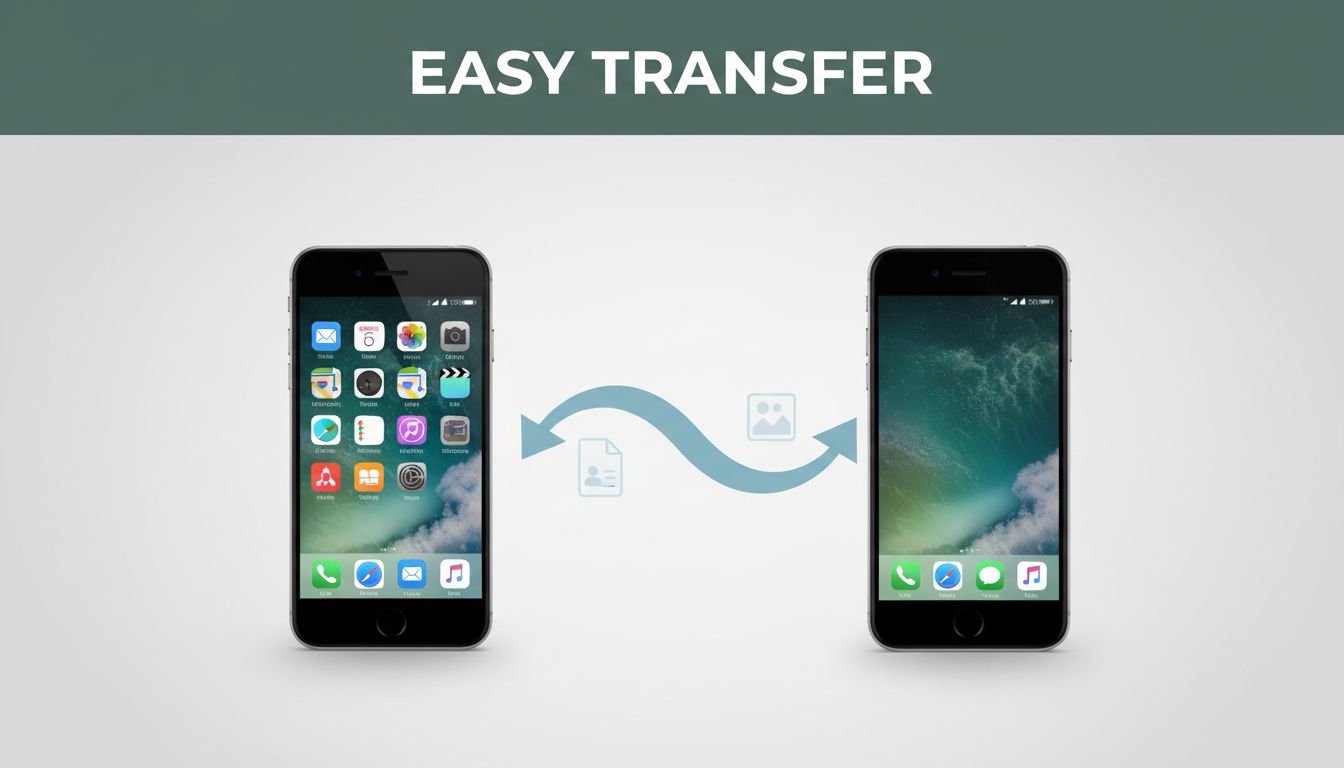
Switching phones sounds simple, until you picture it: your contacts, years of photos, and videos you cannot re-create. One wrong step, and it feels like you could lose everything. The good news is that in March 2026, built-in tools and common cloud sync options make transfers much easier (and free for most people).
This guide walks you through the best ways to move contacts, photos, and videos from Android to iPhone and iPhone to Android. You will get clear steps you can follow right away, no tech skills needed. Keep reading, because you can save yourself hours of guessing and re-downloading.
Prep Your Old and New Phones for a Smooth Data Move
Before you start any transfer, treat it like packing a suitcase. If you skip the prep, you pay for it later. Most issues come from low battery, unstable Wi-Fi, or not having the right accounts turned on.
Start here, then move to the phone-to-phone steps:
- Charge both phones (aim for at least 50%).
- Update software on both devices (latest version in 2026).
- Use Wi-Fi, not random guest networks.
- Back up first using built-in options (you want a safety net).
- Keep phones close during wireless transfers.
- Turn off heavy background activity (close extra apps, pause downloads).
For big video libraries, cables can help a lot. Also, try a small transfer first. Move 10 contacts, a few photos, and one short video. When that works, you know the setup is good.
If a transfer keeps failing, the fix is usually simple: power, Wi-Fi, and updates.
Finally, put both phones on a table where they will not fall. Transfers need time. Interruptions can happen when you pocket one phone or let the screen lock.
Quick checklist before you press Start
- Charge both phones.
- Update both phones.
- Turn on Wi-Fi.
- Know your Wi-Fi password.
- Sign in to your key accounts (Google, Apple ID).
- Set screen timeout longer.
Transfer from Android to iPhone Without Missing a Beat
The easiest Android-to-iPhone option in March 2026 is still Move to iOS. It transfers multiple types of data during iPhone setup. If you want a choice later, Google sync helps for contacts and photos, without needing a reset.
In practice, the “best” method depends on what matters most:
- Fastest one-time move: Move to iOS
- Most flexible over time: Google sync
- Small contacts only: SIM or VCF files
- Photos and videos without resetting: copy with a cable or computer
If you prefer official steps, Apple’s guide covers the setup basics for the Move to iOS experience: Move from Android to iPhone or iPad – Apple Support.
Step-by-Step with Move to iOS App
Use Move to iOS when you are setting up a new iPhone (or after a factory reset). It is designed to move contacts, photos, and videos in one go.
- On your Android phone, download Move to iOS from Google Play.
- Start iPhone setup. Choose Move Data from Android.
- On the iPhone, a code appears. Enter that code on Android.
- Pick what you want to transfer: contacts, photos, and videos.
- Keep both phones on Wi-Fi and plugged in (if possible).
- Wait for the transfer to finish, then complete iPhone setup.
Move to iOS uses Wi-Fi for the transfer. That means speed depends on your network. For large video files, patience helps. Also, use the cable during iPhone setup if you see it as an option. It can reduce waiting time.
If you stop early, some data may not finish copying. Let it run until the completion screen.
Sync Contacts and Photos via Google Account
If you do not want to reset anything, Google sync is a solid plan. Contacts usually sync smoothly when the right switch is turned on. For photos and videos, use Google Photos.
Here is the simple flow:
- On Android, sign in with your Google account.
- Turn on Contacts sync in your Google settings.
- Back up photos and videos in Google Photos.
- On iPhone, add the same Google account.
- Enable contacts and then open Google Photos to download to the iPhone.
Pros: you can keep syncing later, and you skip cable trouble. Cons: it needs internet. Also, photo downloads can take time if your library is huge.
This approach works well when you are moving in steps, like “contacts first, then media later.”
Fast Fixes for Contacts with SIM or Files
Sometimes you only need the contact list. In that case, SIM or file methods can help, especially when photos and videos are already handled elsewhere.
SIM card method (contacts only)
- Export contacts to your SIM on Android.
- Put the SIM in your iPhone.
- Import SIM contacts on iPhone.
Note the limitation: SIM does not carry photos or videos.
VCF file or email (contacts, not media)
You can export contacts as a VCF file from Android. Then open the file on iPhone to import contacts.
Use this when:
- You have a small contact list.
- You want a clean, file-based copy.
- You already transferred photos and videos another way.
For broader “manual move” context from Apple, check Move content manually from your Android device.
Switch from iPhone to Android the Easy Way
Moving from iPhone to Android can be just as smooth in March 2026. If you are on a newer iPhone system version, an official Transfer to Android option may show up in settings during setup. If you cannot use that, the reliable backup route is Google sync.
For most people, you will pick one of these:
- Best for full setup transfers: official transfer during Android setup
- Best for ongoing sync: Google Drive and Google Photos
- Best for selective control: iCloud exports and manual imports
- Best for Samsung users: Smart Switch (if it fits your model)
Apple also publishes switching guidance, including the Move to iOS and switch flow details: Switch from Android to iPhone – Apple.
Use Google’s Switch to Android Tool
Google’s setup process can move your data based on what Android supports during setup. The goal is to connect your iPhone and Android using prompts during setup.
- On your iPhone, install the Switch to Android app (from the App Store).
- Start Android setup. When prompted, choose the option to transfer data from iPhone.
- On Android, you will see a QR or connection prompt.
- On iPhone, scan and connect.
- Select what to move, usually contacts and media.
- Wait while it transfers. Keep phones on Wi-Fi.
For official steps, use this guide: Switch to a new Android device – Google Help.
Backup to Google Drive and Photos First
This method is simple and works even when you already finished setup. It is great when you want fewer surprises.
On your iPhone:
- Sign in to the same Google account you will use on Android.
- Turn on backups for contacts and photos in Google apps.
On Android:
- Sign in with the same account.
- Let contacts sync and open Google Photos to verify everything.
Pros: no phone-to-phone pairing needed. Cons: it depends on internet, and photo syncing can take time.
Also watch your data plan if you are not on Wi-Fi. Backups can be large, especially with years of video.
Pull Data from iCloud Manually
If you want direct control, you can export from iCloud and import elsewhere. This route often takes a few extra steps, but it can work for selective transfers.
Typical flow:
- Export contacts from iCloud as a VCF file.
- Import that file on Android into your Contacts app.
- For photos and videos, download from iCloud and then upload to Google Photos (or copy using a computer).
This method is best when:
- You only need contacts right away.
- You prefer doing media in batches.
- You want control over what leaves iCloud.
If you want a general Android setup guide that includes transfer considerations, here is a helpful reference: How to Set Up & Transfer Data to Your New Device – Android.
Cloud Services That Handle Transfers Both Directions
Cloud services help when you do not want a one-time transfer during setup. Instead, you back up on the old phone and restore on the new one.
Here is the practical comparison for contacts, photos, and videos:
| Service | Best for | How it works | Main downside |
|---|---|---|---|
| Google Drive + Google Photos | Contacts and media across both phones | Back up on old phone, sign in and restore on new | Media access depends on your sync settings |
| iCloud (Apple) | Apple device backups and selective exports | Export contacts (.vcf) and download photos/videos | Manual steps needed for Android |
For contacts, Google is usually the easiest path because it works across ecosystems. For photos and videos, both services can work well, especially if you stay consistent with accounts.
Google Drive and Photos for Seamless Sync
Use Google when you want a plan that keeps working after you switch. Back up contacts to your Google account. For photos and videos, rely on Google Photos backup.
Then on the new phone:
- Sign in with the same Google account.
- Turn on sync for contacts.
- Let Google Photos finish downloading.
This approach shines when you are moving over a weekend. You can start the backup, switch phones, and keep syncing in the background.
iCloud Options with Android Tweaks
iCloud works best when you treat it like a source you export from. For Android, you usually need manual imports.
Contacts:
- Export from iCloud.com as a VCF file.
- Import the file on Android.
Photos and videos:
- Download from iCloud (often via a computer).
- Upload to Google Photos or copy to your Android gallery.
It takes more steps, but it gives you control. If you have a large library, batch downloads can help you avoid failures.
Fix Common Hiccups and Speed Things Up
Even with the best tools, things can stall. Most problems come from the same few causes. Fix those, and you usually get moving again.
If transfers are slow:
- Use a cable for photos and videos when possible.
- Stick to a strong Wi-Fi network.
- Transfer fewer items in each run (batch big video files).
If transfers fail:
- Restart both phones.
- Verify both phones use Wi-Fi.
- Make sure both systems are updated.
If data is missing:
- Recheck sync settings on the new phone.
- Confirm you selected the right categories (contacts vs. photos vs. videos).
- Look for “only recent media” limits in some methods.
Also, stop background processes. Low battery and sleep mode can interrupt transfers. Charge both devices and keep the screen awake.
The fastest transfer is the one that completes. If you get stuck, restart and try a smaller batch.
Conclusion
Switching phones does not have to feel risky. For Android to iPhone, Move to iOS is the simplest all-in-one setup move, while Google sync is the best no-reset option. For iPhone to Android, the official transfer options during setup can save time, and Google backups keep things flexible.
When you prep first, keep phones charged, and use Wi-Fi reliably, you cut down on failures. So take a breath, pick your method, and run a small test transfer before the big one.
Which method worked best for you, Move to iOS, Google sync, or a manual export? Share your experience in the comments, and bookmark this guide for your next phone switch.