Switching phones can feel like a mini disaster. You worry about losing photos, chats, and contacts. Then you hit “move data” and realize it may take cables, time, or both.
That’s where apps to transfer data between smartphones come in. Many apps send files over Wi-Fi, or use QR codes to pair devices. You usually skip the computer and you often avoid mobile data charges. Also, you can transfer Android to Android, iOS to iOS, or even Android to iPhone, depending on the app.
In 2026, the best options tend to fall into two groups. Free apps are great for photos, videos, and documents. Premium tools are better when you want app data and message history too.
This guide covers top picks like Xender, SHAREit, Send Anywhere, Zapya, Phone Clone (Huawei), InShare, EasyShare, plus paid standouts like MobileTrans, Samsung Smart Switch, iReaShare, AirDroid Personal, and DroidKit. You’ll also see how to choose the right one for your phones, and what to do so the transfer actually finishes.
Next, start with the free apps that handle most everyday transfers fast.
Top Free Apps That Make File Sharing Between Phones a Breeze
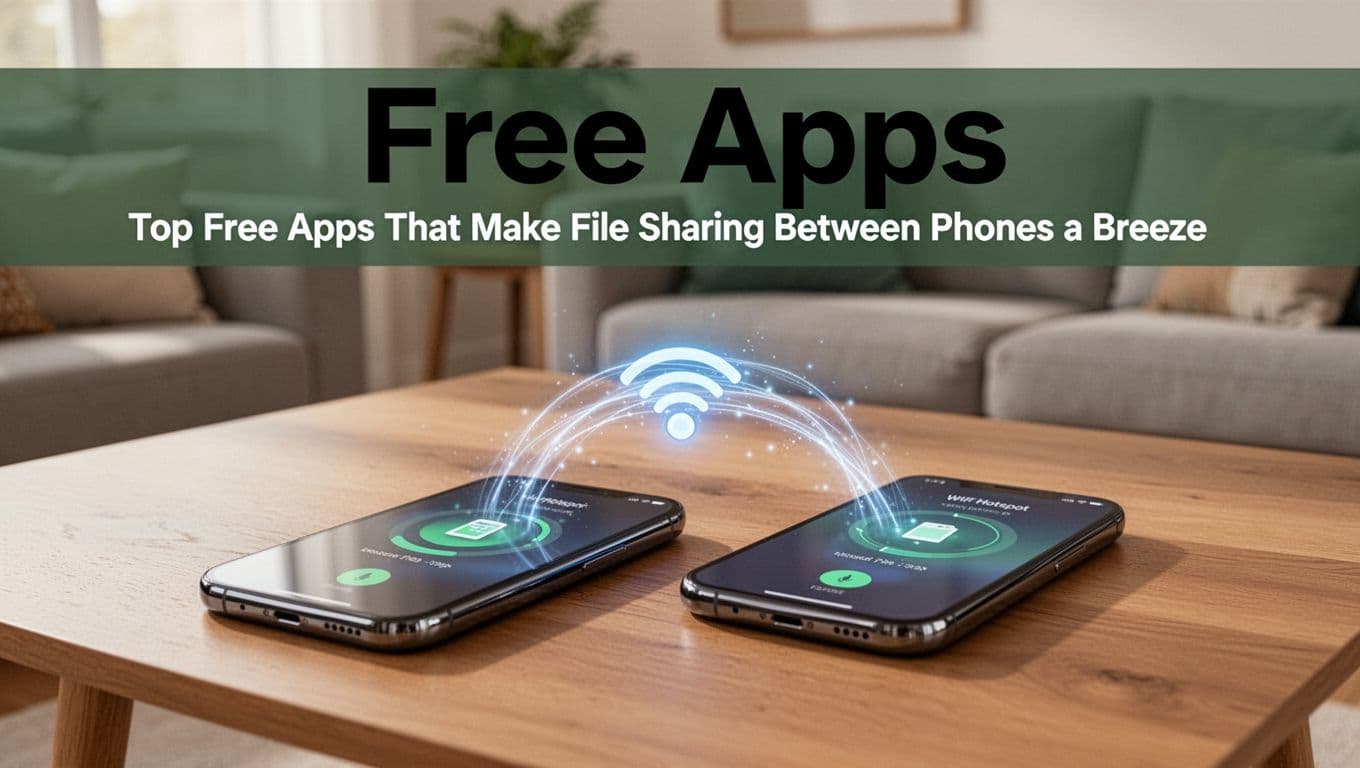
Free apps can be a lifesaver when you mainly need photos, videos, and downloads moved quickly. Most of the better ones work by using Wi-Fi Direct or a hotspot. That matters because Bluetooth is slow for large files.
Here’s a quick way to think about the main choices:
| App | Best for | Speed | Platforms |
|---|---|---|---|
| Xender | Big photo and video transfers | Fast | Android, iOS, (often PC) |
| SHAREit | Large files plus phone cloning | Fast | Android, iOS, (often PC) |
| Send Anywhere | Simple QR pairing for any file | Moderate-fast | Android, iOS, PC/Mac |
| Zapya | Group sharing for friends | Fast (varies) | Android, iOS, PC/Mac |
A common 2026 trend is QR code pairing. Instead of digging through menus, you scan, confirm, and send. Also, many apps work without internet. That makes them useful on flights or when Wi-Fi is weak.
One quick gotcha: free versions may add ads, limits, or upsells. Also, some “phone clone” features work better on certain brands.
If your goal is just files, free apps can beat paid apps on speed and simplicity.
If your goal is chat history and app data, you’ll usually need a premium tool.
Xender and SHAREit: Speed Demons for Everyday Transfers
Xender is popular because it tends to move large folders quickly. In most cases, the sender phone creates a Wi-Fi hotspot. Then the other phone connects and downloads. That’s why it often feels faster than Bluetooth. It’s a solid choice for photos, videos, music, and documents. On top of that, Xender usually works across Android and iOS, and it can include PC support depending on your setup.
The main downside is that some users see ads. Also, phone cloning features may not be as complete as what premium apps offer. Still, for everyday transfers, it’s hard to beat for the time it saves.
SHAREit is another fast option. What makes it stand out is its broader transfer behavior, including phone cloning features (photos, videos, and more). In practice, many people use SHAREit when they want to move a lot in one go, without cables.
Both apps share a similar “feel”: you press send, wait for the device link, then transfer. If you’re moving a few photo albums, you’ll likely be done quickly.
Send Anywhere and Zapya: Simple QR Code Magic
When you want a simple pairing method, Send Anywhere is worth a look. It uses a pairing flow that often relies on QR scanning or codes. You pick files, scan the receiver code, and then the app handles the rest. Because the pairing is quick, it can work well when both phones are in your hand.
Send Anywhere is also known for cross-platform support, including Android to iOS (and computer use). If your list includes random file types, it can be less fussy than some “gallery-only” transfers. For a closer look at how Send Anywhere positions itself for fast, secure sharing, see Send Anywhere 2026 file transfer overview.
Zapya takes a different angle. It’s popular for group transfers and sharing with friends. Some versions also support sending without internet, depending on how you start the transfer. You can move a mix of files and keep momentum while you share with multiple devices.
Zapya’s big plus is how approachable it feels. On the downside, ads can show up because it’s a free app. If you want to confirm what’s currently supported on your phone, check Zapya on Google Play.
Premium Apps for Full Data Transfers Including Apps and Messages
Free apps are great for media and files. But full phone switching is different. You may want contacts, calendars, SMS, WhatsApp data, and app data, not just pictures.
Premium apps usually earn their keep in three ways. First, they support more data types. Second, they reduce the odds of missing something important. Third, they often include better steps for app data and chat history.
For 2026, several tools lead in this category, including:
- MobileTrans (often the top overall pick)
- Samsung Smart Switch (best for Samsung users)
- iReaShare (a strong option for iOS and Android transfers)
- AirDroid Personal (wireless transfer plus beginner-friendly setup)
- DroidKit (Android-focused, especially for Android-to-Android)
Here’s the quick comparison view:
| Option | Free or paid | Best for | Cross-platform | Speed feel |
|---|---|---|---|---|
| MobileTrans | Paid (often free trial) | Full transfers, WhatsApp data | Yes (Android to iOS, etc.) | Very fast |
| Samsung Smart Switch | Mixed (USB or wireless) | Samsung transfers | Limited (mainly Android to iOS) | Fastest with cable |
| iReaShare | Paid (often trial) | Many data types | Yes | Fast to moderate |
| AirDroid Personal | Paid features | Wireless switching | Yes | Smooth for many users |
| DroidKit | Paid features | Android-to-Android | Android-friendly | Fast |
For example, MobileTrans commonly supports many data types (not only photos and contacts). Reviews and app store descriptions often point to transfers like WhatsApp chat history, plus broader content categories. If you want to see how MobileTrans describes its transfer scope, check MobileTrans Android-to-Android transfer details.
MobileTrans: The Go-To for WhatsApp and App Data
If you’re trying to keep WhatsApp chat history (and similar app data), MobileTrans is one of the first apps many people test. In many setups, it supports wireless transfer, and it offers pairing steps with QR codes or similar connection flows.
Usually, the app flow looks like this:
- Install MobileTrans on both phones (or phone plus computer, depending on your plan).
- Open the transfer screen and choose the “from” phone and “to” phone.
- Scan the QR code to connect devices.
- Select data types (photos, contacts, WhatsApp, and more).
- Start transfer, keep both phones awake, then review the summary.
In free trials, you might hit limits like which data types you can move, or how much you can transfer. Still, the trial can confirm two key things: your device compatibility and whether the app data you care about will appear in the checklist.
For many buyers, that’s the point of paying. You don’t pay to move one picture. You pay to avoid missing the one thing you’ll regret losing.
Smart Switch and AirDroid: Brand-Friendly Choices
If you’re moving from a Samsung Galaxy, Samsung Smart Switch is often the fastest and most predictable. The app works well for Samsung-to-Samsung. It also supports moving from other phones to Samsung, and it can handle iOS-to-Samsung workflows. For the smoothest speed, Smart Switch often recommends using a cable (USB) when possible, because it cuts out wireless link issues.
AirDroid Personal is a strong choice when you want something more guided. People also like it when they use a computer setup alongside the phones. If you’re new to phone switching, AirDroid’s approach can feel easier because it focuses on clear wireless steps.
Also remember: brand tools can be “best” for a reason. They might handle transfer types better for their own ecosystems. Cross-platform apps can still work, but the experience can vary.
Pick the Perfect App for Your Android-to-iPhone or Same-Brand Switch
Before you download anything, ask one question: What exactly do you need to move? If you only need files, use a free Wi-Fi transfer app. If you need app data and chats, plan for a premium tool.
Your next step is choosing by scenario.
Cross-Platform Transfers Without the Headaches
For Android to iPhone, you’ll usually want tools that are strong across both ecosystems. Many people start with:
- MobileTrans (when you want app data and messages)
- Xender (when you only need files fast)
- SHAREit (for large media and broad file sharing)
Cross-platform transfers can feel easiest when both phones stay on the same stable Wi-Fi link. If your Wi-Fi drops, the transfer can pause or fail.
Also, some apps handle “phone cloning” more like copying media and settings. That’s why you should check if the data type you care about shows up, before you start.
Sticking to One Brand? These Apps Shine
If you’re staying within one brand, brand-first tools often save time.
- Samsung Smart Switch shines for Galaxy-to-Galaxy, and it can be very smooth with cables.
- Phone Clone (Huawei) is most useful when you’re switching within Huawei’s lineup or between supported models.
If you want a wider list of options to compare, you can use independent roundups like TechRadar’s 2026 app roundup for Android transfers. Just remember, your best choice depends on your exact phones and data types.
Pro Tips to Ensure Your Data Transfer Goes Smoothly Every Time
Phone transfers fail for boring reasons. Battery drops. Wi-Fi weakens. You forget to allow permissions. Then the app freezes at 73%.
To prevent that, do these things before you press start:
- Back up first (even a quick backup can save you).
- Use strong Wi-Fi or keep both phones near the router.
- Close background apps so the transfer app gets full attention.
- Update your transfer app and your phone OS.
- Start with a small test batch (like 10 photos) if you’re unsure.
- Watch the data types in the checklist, especially for chats.
A lot of free apps show limits. For example, you might get file transfers but not app data. If you see “trial” screens, treat them as hints. Decide early whether you’re okay with partial data.
One more safety note: QR code transfers work well, but only scan when you trust the sending phone. Also, keep both phones unlocked and awake during the run.
Keep both phones on the charger when possible.
It’s the simplest fix for mid-transfer failures.
Conclusion
Switching phones in 2026 can still be stressful, but you can reduce the risk fast. For everyday files, free apps like Xender and SHAREit handle big photo and video moves without cables. For full switching, especially when you care about WhatsApp chats and app data, MobileTrans is often the strongest all-around pick.
Start with the free version if you can. If the checklist includes everything you need, keep going. If it doesn’t, upgrade based on the one data type you refuse to lose.
If you try an app this month, share what worked for your setup. Which phones were you switching, and what got transferred smoothly?