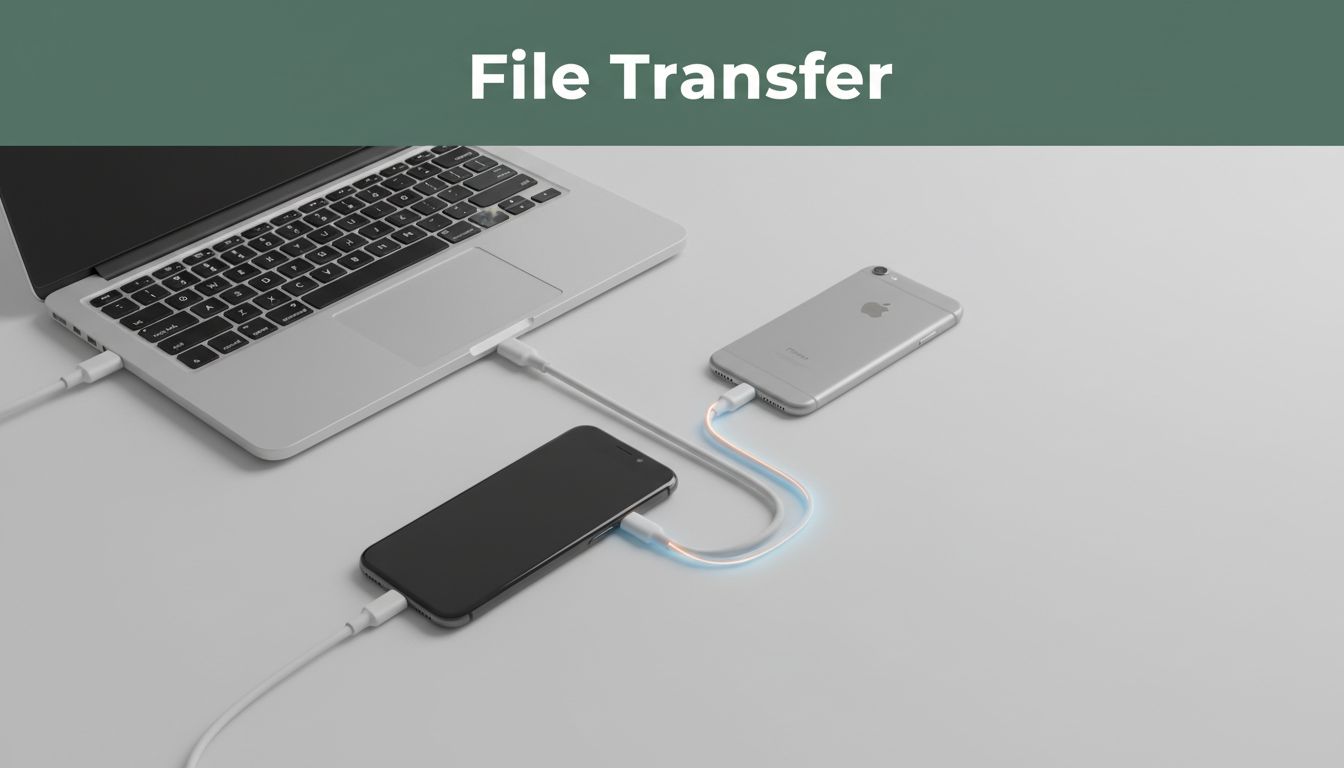
Ever forget your photos on your phone right when you need them most, like on a trip? You try to fix it fast, but wireless sharing can be slow, finicky, or unavailable.
Using a USB cable for file transfer is often the easiest answer. You skip Wi‑Fi, you get more consistent speeds, and you only need your device, a compatible port, and the right cable.
In 2026, USB speeds can be very fast too. USB4 can hit up to 40 Gbps (and even higher on some newer versions), while USB 3.2 is still the common standard for everyday transfers. In real life, USB 3.2 Gen 2 often delivers around 1,000 MB/s, and USB4 can reach 3,000 to 4,000 MB/s on supported gear.
Below, you’ll get simple steps for common device pairings, plus quick tips to keep transfers secure and avoid the usual “why won’t it show up?” problems.
Get the Right Cables and Check Compatibility First
Before you plug anything in, check compatibility. USB file transfer is less about “magic cables” and more about matching the right ports and modes.
USB-C is the norm on most 2026 devices. Still, you can’t assume every USB-C cable supports data. Some are charging-only.
Here’s what to grab based on your device pair:
- USB-C to USB-C data cable: Best for most modern phones and many laptops.
- USB “bridge” / transfer cable for PC-to-PC: Useful when two Windows PCs won’t play nice with a normal cable.
- USB-C OTG adapter or OTG drive: Lets your phone act like a file host for a USB stick or SSD.
- A powered USB hub (when needed): Helps with larger drives that need more power.
USB standard reality check:
USB4 is usually fastest, but your phone (especially iPhone) may top out at USB 3.2 speeds. Also, cable quality matters. Cheap cables can limit you to slower USB rates.
If a cable can’t carry data, you’ll see charging but no file access.
Quick compatibility table (practical picks)
Use this as a starting point. Actual speeds depend on your devices, drive type, and overhead.
| Device pair | Best cable or adapter | Max speed you’ll usually see | Notes |
|---|---|---|---|
| Windows PC to Windows PC | USB-C to USB-C data cable (or USB bridge cable) | USB 3.2 Gen 2: ~1,000 MB/s (USB4 if supported) | Avoid “printer” cables; use data-capable USB |
| Android phone to Windows PC | USB-C to USB-A/USB-C data cable | Often USB 3.2 Gen 2: ~1,000 MB/s | You’ll switch to File Transfer (MTP) mode |
| iPhone to Mac | USB-C cable on iPhone 15+ | Commonly USB 3.2 speeds (USB4 not typical) | Use Trust when prompted, then Finder drag-and-drop |
| Android to iPhone | USB-C OTG drive (USB stick/SSD + adapter) | Similar to USB 3.2 drive speeds | Copy to the drive on Android, then import in iPhone Files |
| Phone to phone (same type) | USB OTG drive or host-mode cable | Often USB 3.2 drive speeds | Keep sender and receiver powered and unlocked |
For PC-to-PC, if you want a cable made for direct transfers, look at a dedicated option like Plugable’s USB-C transfer cable with adapters from Plugable USB data transfer cable. It’s designed for Windows-to-Windows copy workflows.
Also, if you’re moving a lot of data, consider a powered USB hub. Some drives spin up, then fail mid-copy due to power limits.
And yes, scan anything sensitive. If you’re moving files from a device that might be infected, run a quick antivirus scan before you copy, then scan again after the transfer.
Step-by-Step Guides for Every Popular Device Pair
The core idea stays the same across devices: connect with a data-capable USB cable, unlock the source device, pick File Transfer mode, copy, then eject safely.
Still, each device pair has its own “gotcha.” That’s where these steps help.
Transfer Files Between Two Windows PCs
When you want the simplest “PC to PC” move, you have two reliable paths: a direct USB data/transfer cable or a shared drive.
- Pick the right physical connection
Use USB-C to USB-C (if both ports support it) or a dedicated transfer cable made for Windows-to-Windows. - Plug in both ends
Connect the cable, then keep both computers awake. - Unlock the sending PC (if asked)
Some systems prompt for USB access or device trust. - Open File Explorer on both PCs
Wait for the sender side to show up as a drive or device. - Copy files using drag-and-drop
Move folders, not just single files, if possible. - Eject safely
Use the “Safely remove hardware” option before unplugging.
If you’re sharing huge folders, zip them first. It reduces tiny file overhead and speeds up copying.
One more thing: avoid random cable types. A “printer cable” can look similar, but it often won’t support data the way you need. Use a true USB data connection for transfers.
Move Files from Android Phone to Windows PC
Android to Windows works well with a proper USB data cable, plus the right transfer mode.
- Connect your Android to the PC
Use a USB-C cable (or the correct cable for your model). - Unlock your phone
Keep the screen on. - Choose the USB option notification
Tap the notification and select File Transfer (MTP). - On Windows, open File Explorer
Look for your phone under “This PC.” - Copy from Internal storage or DCIM
For photos, check DCIM and Pictures folders. - Safely eject in Windows
Then unplug.
If Windows doesn’t recognize the phone, update drivers. Restarting both devices fixes a lot too.
Also, some users get smoother results when they start from photo-specific guidance. Android Authority has a practical walkthrough for moving photos to Windows, starting with the MTP switch and the right folders in File Explorer, in how to transfer photos from Android to a Windows PC.
When nothing appears at all, you may need a different approach. For cases where you want an extra option beyond the built-in MTP flow, DeskIn lists common Android transfer software choices in Android file transfer software options. Keep those as backup plans, not your first move.
Sync iPhone Files to Your Mac Effortlessly
iPhone to Mac is usually smooth once you handle the trust prompt.
- Use the correct iPhone cable
For iPhone 15 and later, use USB-C. Older iPhones may use Lightning. - Connect to your Mac
Then unlock your iPhone. - Tap Trust if prompted
You’ll see a trust dialog on the iPhone. Accept it. - Open Finder on the Mac
Your iPhone shows up in the Finder sidebar. - Choose what to browse
Check DCIM for photos, or use the Files app for documents. - Drag files to your Mac
Copy, then close Finder properly. - Eject before unplugging
Use the Finder eject action.
Apple also documents file transfer methods between iPhone and other devices in Transfer files between your iPhone and other devices.
If you’re moving a large photo library, start with “Photos” style folders first. Then move videos and shared libraries second. This keeps you from hunting for items later.
Android to iPhone Transfers Using a USB Drive
When you cross Android and iPhone, a single cable might not be enough. That’s where an OTG USB drive becomes your bridge.
You’ll need:
- A USB-C OTG drive (or USB-C adapter + USB stick/SSD)
- Enough free space on the drive
- Connect the USB drive to your Android using OTG.
- On Android, open your file manager
Use the app that lets you copy files (Photos or Files app). - Copy files to the USB drive
For photos, copy the DCIM folder if possible. - Eject the drive from Android safely
This helps avoid corrupted copies. - Remove the drive and plug it into your iPhone
Use the USB-C connection method your iPhone supports. - Open iPhone Files
Tap the drive, then copy to your iPhone.
For OTG basics, Androidayuda covers what USB OTG can do and how to use it across scenarios in Everything you can do with USB OTG.
Security tip: if the drive is shared or borrowed, don’t leave it full. After copying to iPhone, delete the files from the drive if you can. It reduces “leftovers” if the drive ends up elsewhere.
Share Files Directly Phone to Phone
Phone-to-phone transfers work best when both phones are the same type, or when you use a USB drive as the middle step.
Option A: Use a USB OTG drive
- Plug the OTG drive into the sender phone.
- Copy files to the drive.
- Eject safely.
- Plug the drive into the receiver phone.
- Copy off the drive into Photos or Files.
Option B: Use a host-mode cable (when available)
Some setups support direct host-to-client connections. If your gear supports it, the flow is similar: sender copies to the connected device storage, receiver copies from it.
Keep both phones unlocked during transfer. Locked screens can pause USB access.
Also, plan your power. If your phones have low battery, plug them into chargers when possible.
Pro Tips to Speed Up and Secure Your Transfers
USB transfers are already faster than many wireless methods. Still, you can make them smoother and safer with a few habits.
- Keep devices awake
Screen timeout can pause the transfer. - Match USB 3.2 or USB4 ports and cables
USB 3.2 ports often have a blue insert. Use the matching cable. - Use fast storage for best results
A slow USB flash drive can bottleneck everything. - Zip big folders
It reduces overhead from thousands of small files. - Use encryption for sensitive files
If you’re moving private documents, encrypt them before copying. - Scan before and after
A quick scan helps catch issues early.
If you’re using Windows, always eject before unplugging. It prevents “file is in use” errors and reduces corruption risk.
Finally, start with a test copy. Move a small folder first. Then commit to the full transfer.
Troubleshoot Common USB Transfer Issues in Seconds
USB problems usually fall into a few simple categories: detection, mode, speed, trust, or permissions.
- Device not detected at all
Try a different USB port first. Next, restart both devices. Finally, try a different cable (charging-only cables cause this). - Wrong USB mode (charging only)
Check your phone’s notification for USB options. Switch from charging to File Transfer (MTP). - Transfer is painfully slow
Make sure you’re using USB 3.2 or better ports/cables. Also, test with another drive. A single slow drive can ruin speed. - Permission errors or missing access
Unlock the phone. Tap Trust if prompted. Then try again. - Files appear missing after transfer
This often comes from improper eject. Copy again, and eject safely both before and after unplugging.
For iPhone issues, the Trust prompt matters a lot. If you missed it, disconnect and reconnect, then accept the prompt.
For Android, if the phone shows “charging” only, don’t keep copying. Fix the mode first. Then retry the copy.
If you hit a wall repeatedly, try a zip file approach. It reduces the number of operations and makes it easier to see whether the transfer worked.
Most USB “mystery failures” come from two causes: the wrong cable or the wrong USB mode.
Conclusion
Forgetting your files on the wrong device can ruin a day. The good news is that USB file transfer usually fixes it fast, with less hassle than wireless.
Start by matching ports and cables, then switch your phone to the right transfer mode. After that, copy carefully and eject safely, especially when moving big folders.
What’s your go-to file transfer hack when you need photos or docs right now?