Sharing a big video between two phones and waiting forever for Bluetooth to finish is the worst part. Wi-Fi Direct fixes that by letting your devices connect straight to each other, without a router or internet. You’re basically creating a private wireless link, so files can move faster and more reliably than Bluetooth for everyday sharing.
Most modern phones and laptops include it, and it’s been in the mix since around 2012. In real-world use, Wi-Fi Direct can reach up to 250 Mbps or more, with Wi-Fi 6 and 6E pushing higher speeds, and Wi-Fi 7 helping even more when conditions are good. Even better, transfers don’t eat your mobile data because they run peer-to-peer.
Next, you’ll see exactly how Wi-Fi Direct finds nearby devices, connects securely, and starts sending files.
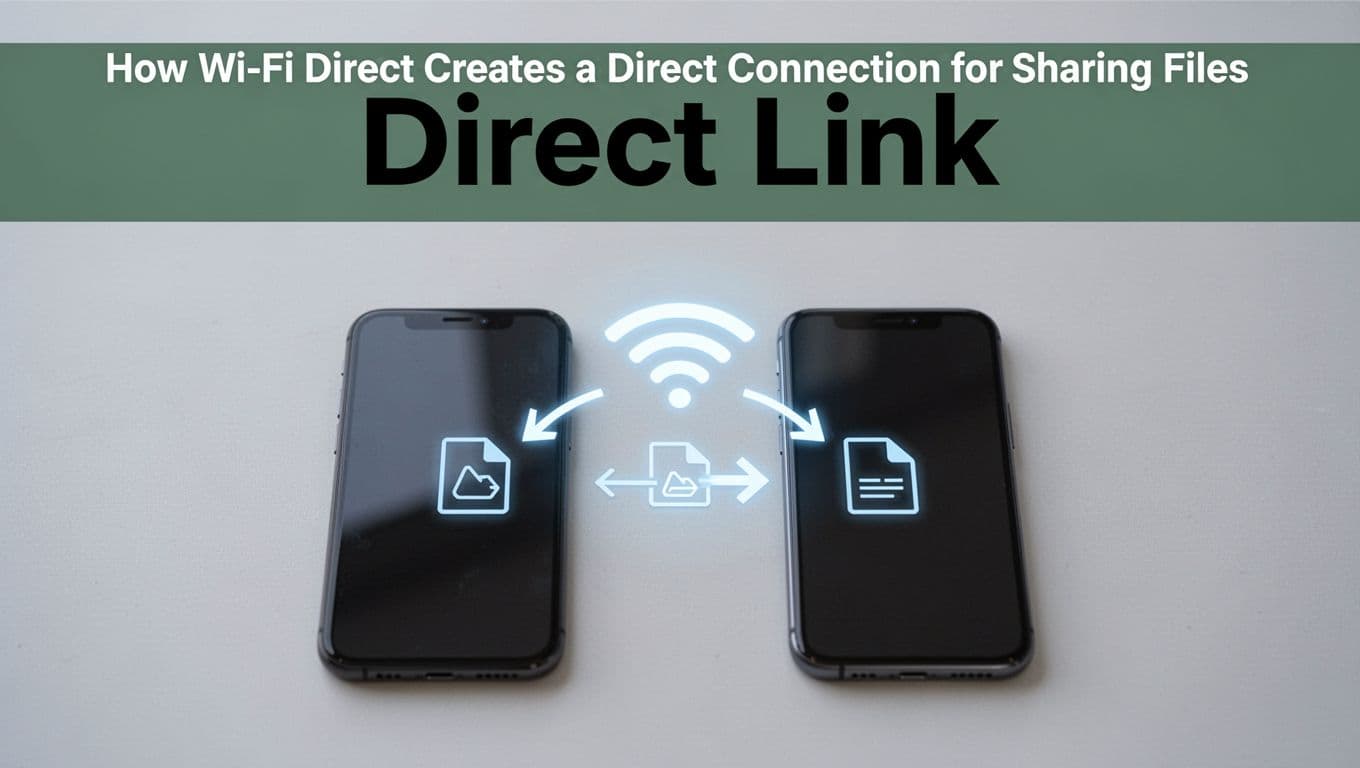
How Wi-Fi Direct Creates a Direct Connection for Sharing Files
Wi-Fi Direct is a little like two friends whispering to each other in the same room. They don’t need the house network first. Instead, the devices create their own short-range link, and then they move files over that link.
The result feels simple: you pick a nearby device, accept the connection, and share. Because the data goes peer-to-peer, you also avoid the “wait while everything bounces through a router” problem.
The Step-by-Step Magic Behind Peer-to-Peer Transfers
Here’s what usually happens, in plain, real-life terms. Think of it as moving from “looking for each other” to “handing over the package.”
- Scan for nearby devices
First, you open the file-sharing screen in your app. Then you tap something like Wi-Fi Direct (or Nearby share), and your phone or laptop searches for compatible devices nearby.
This discovery step is fast, because it does not need the devices to join a shared home network. - Select the target device
Next, you choose the person you want to send to. You’ll usually see a device name, model, or a list of nearby targets.
At this point, your device is ready to start a direct link, not to connect through a router. - Connect and accept on the receiver
Now the receiver plays the “yes, you can talk to me” role. Depending on the device, you might see:- a connection accept prompt
- a PIN confirmation
- a button prompt
- sometimes NFC for quick pairing
After that, the devices lock in a secure peer connection.
- Open your file app (or sharing menu)
Then you switch to the app you actually want to share from. This can be Photos, Files, Gallery, a document app, or even a sender tool inside your sharing feature.
In many cases, the app shows a Wi-Fi Direct option once the link is ready. - Share using Wi-Fi Direct option
Finally, you tap Share and choose the connected device. From here, the transfer runs over the Wi-Fi Direct link, often on 2.4 GHz or 5 GHz bands.
As a result, you can send big videos and large folders with less fuss than Bluetooth.
A big win: you don’t need internet. You can share in areas where Wi-Fi is weak, expensive, or not available at all. For example, you can share at a park, on a road trip, or in a venue with blocked networks.
Also, Wi-Fi Direct can support group sharing. Instead of one sender-to-one receiver only, you may be able to share to multiple devices at once (depending on the app and device support). It’s like passing one stack of papers to several people without calling for the building’s mail service first.
Bottom line: Wi-Fi Direct creates a direct device-to-device link first, then your sharing app sends files through that link, no internet required.
If you’re curious about performance in 2026, newer Wi-Fi 7 gear helps. Real-world peer links can reach very high speeds when devices sit close together, often far beyond older Bluetooth-style transfers.
Set Up Wi-Fi Direct File Sharing on Android in Minutes
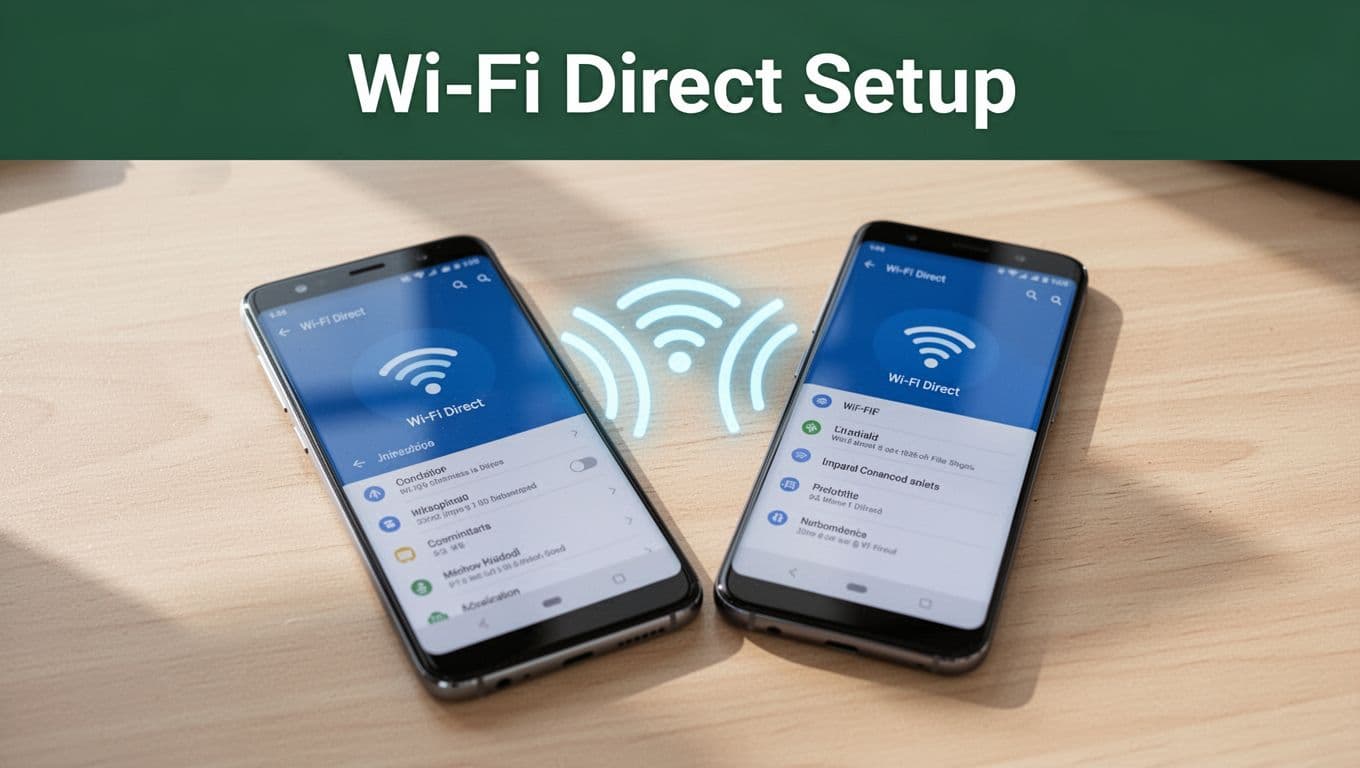
Once you know where the switch lives, Wi-Fi Direct file sharing on Android takes just a few taps. Think of it like flipping on a walkie-talkie channel, then handing over a package. After that, transfers usually feel much quicker than Bluetooth, especially for big videos.
Quick Tips for Smooth Android Transfers
If you want transfers to work the first time, start with the conditions. Wi-Fi Direct works best when both phones can “see” each other, and when your radios are ready to pair.
Here are the quick habits that usually fix the biggest problems:
- Keep Wi-Fi on, but don’t connect to a flaky network. Your phone can stay connected to your home Wi-Fi, but if you see odd slowdowns, try disconnecting from the network and leaving Wi-Fi on.
- Turn on Bluetooth and Location. Android often uses Bluetooth for device discovery, while Location helps scanning. You can turn them off after the transfer.
- Bring phones close (about 10 meters or less). Move into the same room. Walls and distance act like extra friction.
- Use the same transfer app on both sides, when possible. That way, the receiver knows where to tap “Accept” or what folder to check.
- Disable VPN for setup. It can confuse discovery and pairing, even when the Wi-Fi link could work.
- Refresh the device list if you don’t see the other phone. Sometimes discovery takes a second, or one device timed out.
A lot of people use third-party apps like SHAREit and Xender because they feel familiar and fast. They also rely on the same underlying idea, a direct Wi-Fi link between phones. In typical tests, Xender often lands near ~40 MB/s for large files, while SHAREit often lands closer to ~20 MB/s. Bluetooth usually crawls by comparison, especially for a gigabyte video.
Now, for the exact 2026 steps that work well on Android 16+, including Samsung and Pixel.
Android 16+ exact steps (Wi-Fi Direct in Settings)
Use these steps on both phones (sender and receiver):
- Open Settings.
- Go to Network & internet (or Connections, depending on your skin).
- Tap Wi-Fi.
- Open Wi-Fi preferences.
- Choose Advanced.
- Tap Wi-Fi Direct.
Now both phones should begin scanning. Next, the flow stays simple:
- Both devices scan for nearby targets.
- Sender taps the receiver device name in the list.
- Receiver taps Accept to connect.
Once connected, share from the file you want to send. On the sender phone, open Files, Gallery, or your document app, then tap Share. If the connected option shows up as Wi-Fi Direct, pick the receiver and send. The receiver should save into a local folder like Downloads.
Use Nearby Share and Quick Share (easy Wi-Fi Direct mode)
If you want hidden Wi-Fi Direct ease, use Nearby Share (Google) or Quick Share (what many Android phones show now). These features often use Wi-Fi Direct underneath while keeping the UI simpler.
On Pixel devices, Google documents Quick Share setup and sending. Start with their help guide for what appears on your phone: Use Quick Share on your Android device. If you prefer Pixel-specific steps, use this support page too: Quick Share on Pixel.
Here’s the practical flow you’ll see:
- Swipe down, turn on Wi-Fi, Bluetooth, and Location.
- Open Quick Share (or Nearby Share) from the share sheet.
- Pick your nearby device (it should appear quickly).
- Receiver taps Accept, then the file sends.
Samsung and Pixel specifics (what changes, what doesn’t)
Samsung and Pixel make this easier with their own share layers. The connection still ends up as a direct Wi-Fi link, but the buttons look different.
- Samsung (Galaxy, Quick Share): Turn on Quick Share, then share a file from Gallery or Files. If you prefer the manual path, you can still find Wi-Fi Direct in Settings under Wi-Fi.
- Pixel (Quick Share): Quick Share is usually the fastest route. Turn it on, then share from Files or Photos. Pixel tends to auto-use Wi-Fi Direct when both phones are nearby.
For a visual walkthrough on Samsung, this video can match what you see on screen: How to Use WiFi Direct on Samsung.
Speed demo: you’ll feel the difference fast
To test your setup, grab a 1 GB video and run a transfer. Under good conditions (phones close, low interference), Wi-Fi Direct apps and Quick Share often finish in under a minute. Bluetooth can take hours for the same file size.
If you want a simple way to judge success, watch the progress bar right after pairing. When the connection locks in, the transfer rate should jump and stay steady.
Top Cross-Platform Apps to Try in 2026
If you want Wi-Fi Direct sharing to feel “press play, send file,” the right app matters. Native Wi-Fi Direct support helps, but third-party apps often smooth out the experience across Windows, macOS, iOS, Android, and Linux. Also, in 2026 there’s no sign of major Wi-Fi Direct protocol updates that change the basics, so think of these apps as better wrappers around the same direct connection idea.
FlyingCarpet, Feem, and Samsung Smart Share (what each does best)
Start with FlyingCarpet when you care about broad device support and fewer steps. It works like an AirDrop-style file handoff, but across phones and computers. In recent versions, it adds Bluetooth help for discovery, so devices find each other faster in close range. Most importantly, it can handle very large transfers because it creates its own local Wi-Fi hotspot for the transfer. If you’ve ever tried to send a big video and watched it stall, this one targets that pain point.
You can check the project on FlyingCarpet on GitHub and grab the iOS app from the Flying Carpet File Transfer App Store. The big takeaway: FlyingCarpet focuses on direct file movement, not fancy extras.
Next, try Feem when you want a simple “share over local network” experience, especially on Windows and mixed setups. Feem is widely used for offline transfers on the same Wi-Fi, and it’s often a practical choice when Wi-Fi Direct screens feel different across brands. In 2026, the app’s appeal still comes down to ease and cross-device support, even if it doesn’t show big new Wi-Fi Direct feature changes lately.
To install on Windows, use Feem on Microsoft Store. The takeaway: Feem works best when you want a familiar flow across devices, without treating Wi-Fi Direct like a puzzle.
Finally, Samsung Smart Share helps when you live in the Samsung ecosystem, like Galaxy phones and Samsung TVs. Samsung often uses Wi-Fi Direct for quick connections, so sending media can feel like a few taps. For setup basics on Samsung models, Samsung provides guidance here: Connect via Wi-Fi Direct on Samsung Galaxy tablets.
In other words:
- FlyingCarpet: big files, cross-platform focus, discovery assisted by Bluetooth.
- Feem: easy local sharing, especially for mixed device homes and offices.
- Samsung Smart Share: best when at least one device is Samsung and you want the Samsung-style flow.
Why Wi-Fi Direct Beats Bluetooth and NFC for File Swaps
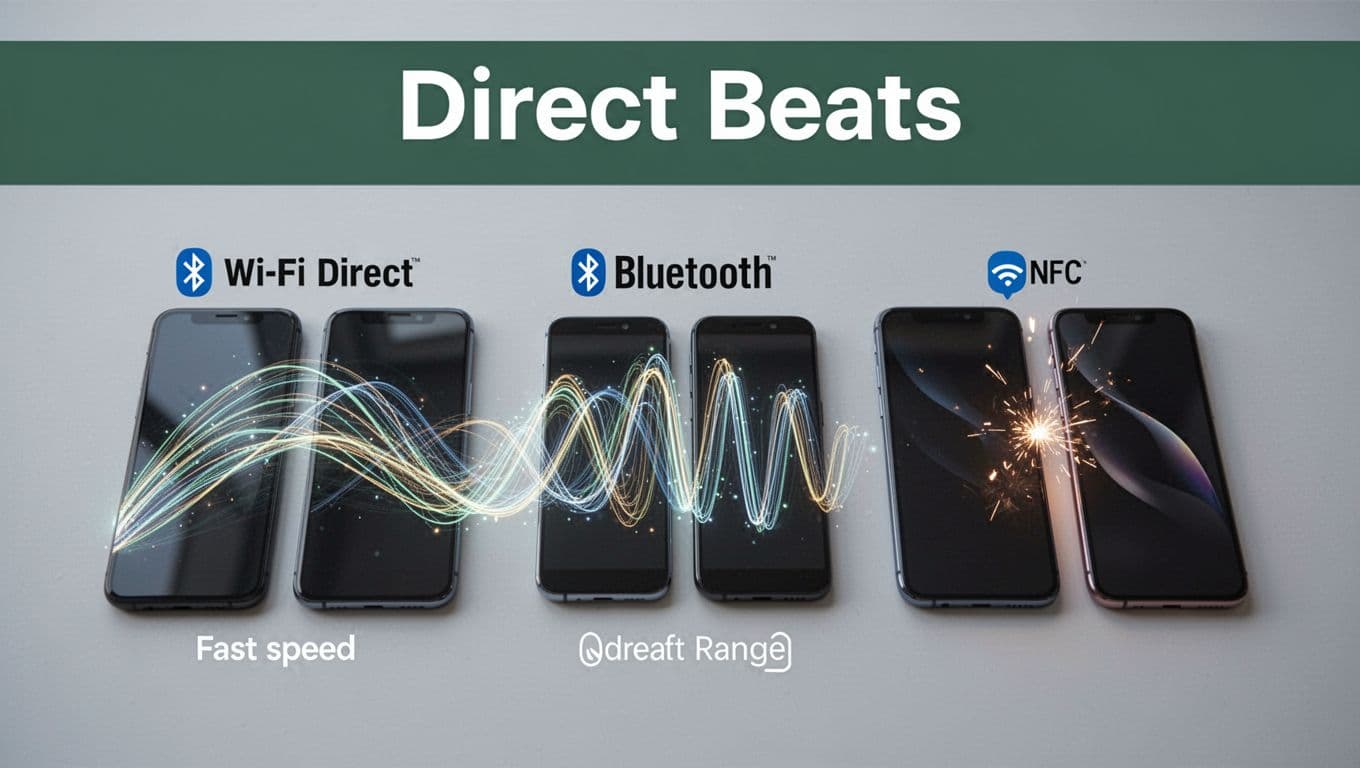
When you swap files, you’re really choosing a speed and connection style. Wi‑Fi Direct treats the transfer like a local pickup line. Bluetooth treats it like a slow walk across campus. NFC mostly acts like a tiny “start here” handshake.
The difference shows up fast when the file gets big, like HD photos, large videos, or app backups. In 2026, Wi‑Fi Direct still wins for big file swaps without internet because it runs over Wi‑Fi radio bandwidth between devices.
The speed, range, and “who it’s for” comparison
Here’s a simple way to pick the right tech. Use the numbers as a guide, then trust what you feel on your phone.
| Tech | Typical speed | Typical range | Best for | Main limits |
|---|---|---|---|---|
| Wi‑Fi Direct | 50–250+ Mbps | up to 200 ft (outdoors varies) | Large files, HD video, folder transfers, group sends | Uses more power, setup takes a moment |
| Bluetooth | Up to 2–3 Mbps (varies by version) | best at 10–33 ft indoors | Photos, songs, quick medium transfers | Too slow for large files |
| NFC | ~106–424 Kbps | touch required (under 4 cm) | Instant pairing start, tiny data | Not for real file transfer sizes |
So what does this mean in practice? You can often send an HD video with Wi‑Fi Direct in minutes, while Bluetooth may drag for the same size file. NFC, meanwhile, is great for quick pairing and handoff, not for moving the actual payload.
Battery and data: saving your phone from cloud limbo
Most people lose time and power when they rely on cloud links or social apps. Upload, wait, and then download. It also burns mobile data, even when you swear you are “just sharing one video.”
Wi‑Fi Direct avoids that pattern because it’s peer-to-peer, meaning your devices move the bytes directly. That’s also why it feels more reliable in places with weak or blocked internet, like a busy event or a road trip stop.
On the other hand, Bluetooth’s low power helps you send small stuff without draining much battery. Still, the transfer time gets longer, and longer transfers can erase the battery win. If you’ve ever watched a Bluetooth progress bar crawl, you know what I mean.
Meanwhile, NFC stays power-friendly because it only works at near-touch distance. It’s a great “tap to begin,” but it can’t move large media on its own.
Security and setup: secure P2P without the “touch only” trap
Security improves with direct links because you avoid “public internet” paths. Wi‑Fi Direct establishes a local peer connection and then transfers over that link, so your file swap stays inside the devices involved.
Also, the pairing experience matters. NFC shines at ultra-fast start, but it’s limited by physical range. Bluetooth supports pairing at a longer distance, but its file-transfer throughput stays limited. If you want the best of both worlds, many phones use quick pairing (sometimes NFC-like handoff) and then let the transfer run on faster Wi‑Fi Direct.
If you want deeper background on the building blocks, these explain the tech behind the choices: what Bluetooth is and how it works and what NFC is and how it works.
Fix Wi-Fi Direct Glitches and Get Sharing Again Fast
When Wi-Fi Direct acts up, it usually comes down to one thing: the two devices never fully agree on a connection. Once that handshake breaks, sharing stalls, the receiver never sees anything, or transfers crawl. The good news? Most fixes take under a minute, and you can do them without fancy tools.
Devices not visible in the list? Do this first
If you cannot find the other device, treat it like trying to call someone through a closed door. First, make sure the basics are actually ready.
Try these quick steps in order:
- Restart the scan. Back out to the device list, then re-open Wi-Fi Direct (it often times out).
- Get close. Put both phones in the same room, then try again. Walls and distance kill discovery.
- Confirm Wi-Fi is on. Turn on Wi-Fi, but do not join a weak or unstable hotspot first.
- Keep Bluetooth and Location on (for setup). Android often uses them to help find nearby devices.
- Turn off VPN during pairing. A VPN can block the local setup flow even if your Wi-Fi Direct menu looks fine.
- Reboot both devices if it still fails. Yes, it’s boring, but it clears stuck radio states.
If you want a visual walkthrough, this guide can match what you’re seeing on screen: fix Wi-Fi Direct on Android.
No share option appears? Reset the pairing path
Sometimes devices connect, but your sharing menu never offers the Wi-Fi Direct target. That usually means the file app and the connection aren’t synced.
Do these fixes:
- Forget old pairings. Remove the Wi-Fi Direct device entry (or delete the pairing record) on both phones, then try again.
- Use Nearby Share or Quick Share if available. Many modern Android devices route the transfer through Wi-Fi Direct behind the scenes, which keeps things consistent.
- Try a different file app. For example, if the Photos share sheet fails, try Files or a file manager like CX File Explorer.
- Confirm you started the right side first. Have the receiver open the accept screen before the sender taps send.
For cases where connection fails after an Android update, HP users reported a similar pattern and troubleshooting approach: Wi-Fi Direct connection fails from Android 12.
Transfers start, then slow down or drop? Stabilize the link
Slowdowns usually happen when the Wi-Fi channel gets crowded or your phones drift. To stabilize the link:
- Prefer 5 GHz when the option exists. It often handles high-speed transfers better than 2.4 GHz.
- Keep interference low. Move away from microwaves, thick walls, and busy Wi-Fi spots.
- Stay within a short range. Small distance changes can break the flow.
- Plug in if the transfer is long. Battery saving can throttle radios and cause dropouts.
- Retry once, then reset if it loops. If it stalls twice, forget the device and start fresh instead of repeating taps.
If you also suspect broader Wi-Fi trouble, these troubleshooting steps can help narrow it down: Android Wi-Fi connection fixes.
Conclusion
Wi-Fi Direct file sharing works because your devices skip the router and connect peer-to-peer over Wi-Fi, then send files on a local link. That’s why it feels so much faster than Bluetooth for big videos and large folders, especially when you’re sharing right next to the other device.
If you want a quick win today, try the Wi-Fi Direct flow on your own phone. Send one large file to a friend or to your other device, then watch how the link sets up and how quickly the transfer starts (Wi-Fi 7 support in 2026 can make this even smoother when both sides support it).
What will you share next, a 1 GB video or a whole photo folder? Keep an eye on how Android 16+ and nearby sharing tools keep improving, because the best part is that direct sharing keeps getting easier without you changing your habits.