Ever tried sending a big video to a friend across the room, only for it to stall, fail, or crawl? Wireless file transfers like AirDrop, Nearby Share, Quick Share, Bluetooth, and Wi-Fi Direct sound like they should work everywhere. In practice, they run into limits fast.
These tools usually move files by pairing devices nearby, then pushing data over short-range links. That proximity helps privacy and reduces random strangers grabbing your file. However, the same design creates limits you feel the moment you’re not “just next to” the other device.
Because of that, wireless transfers often hit roadblocks like range, file size caps, battery drain, device compatibility, and extra setup or internet checks. When any one of those breaks, the transfer can fail or loop for minutes.
So yes, wireless sharing is convenient. But the limits matter. In many cases, wired or cloud options save time and prevent the “why won’t this send?” frustration.
Why Distance Puts a Hard Limit on Your Shares
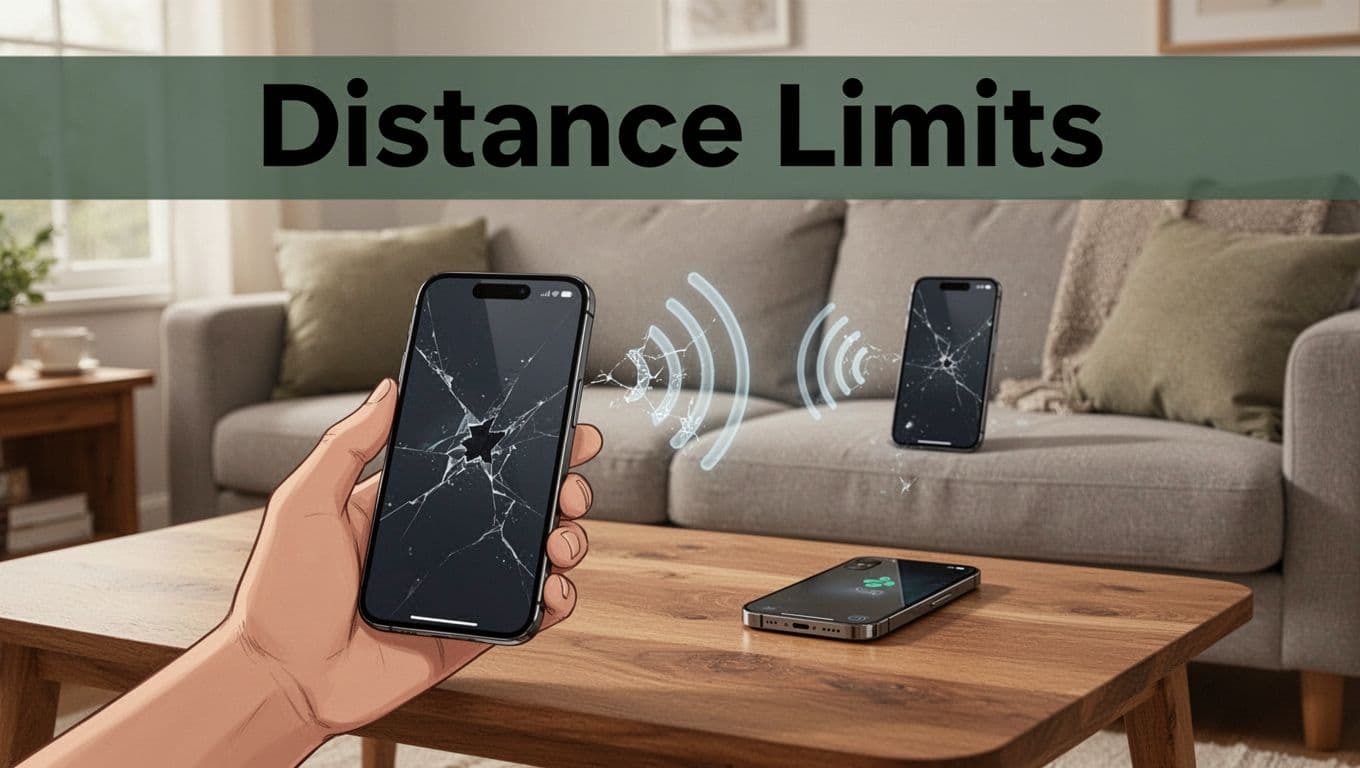
Wireless file transfer tools depend on signal discovery. That means both devices must “see” each other first. When they’re close, pairing is quick. When they’re farther apart, discovery breaks down.
For many methods, the sweet spot is roughly 30 to 50 feet (about 10 meters). Beyond that range, you’ll often see failed discoveries, slower speeds, or stuck “searching” screens. Bluetooth Low Energy helps devices find each other, but it weakens quickly with distance. Wi-Fi Direct can reach farther in open spaces, but walls and furniture still cut the range.
Proximity also helps security. Tools like AirDrop, for example, are designed so transfer prompts only show when devices are near. That’s great at a party, but it’s not built for sending from the parking lot.
Here’s what this looks like in real life: you’re at a meetup, someone wants a photo, and they step closer. It works. You try again from across a lobby, and the transfer doesn’t even start. Even if both phones are “connected to the same Wi-Fi,” that usually doesn’t matter. These apps still need nearby peer-to-peer contact.
If you want the best chance of success, try simple fixes:
- Move closer than you think you need to. Walls shrink usable range fast.
- Keep both devices awake and unlocked during discovery.
- Avoid other transfers running at the same time, since they compete for radio time.
File Size Caps That Stop Big Transfers Cold
Small photos are easy. Large videos are where wireless tools show their limits. Most services cap transfers to around 5 GB per file, and bigger sends often break in messy ways.
Some apps may fail outright. Others stall, then cancel after a long pause. On older phones, behavior can be even stranger. A file might appear to start, then stop with no clear reason, or it might partially send and never finish. Bluetooth-based transfers are especially limited because the channel is slow.
Why does this happen? Wireless transfer isn’t just speed. It’s also stability. During a big send, any brief hiccup can cause retransmissions. At a certain point, the system gives up or refuses to send to protect the transfer session.
Large media triggers common failure patterns:
- High-bitrate videos that take longer to push
- Many photos bundled into a single selection
- Background power-saving modes that throttle radios
- Interference from nearby Wi-Fi networks
Before you hit “share,” do a quick check. If you’re sending a 6 GB video, you’re asking the transfer system to do more than it’s built for. Splitting the file can help sometimes, but it’s not always worth the hassle.
AirDrop vs Android Pitfalls
Apple generally handles large file transfers more smoothly, but it’s not unlimited. You can still run into size caps, and certain older devices may behave differently.
On Android, Nearby Share and related features can also struggle with big files. Users often report issues like silent stalls or repeated retries when the transfer is near the upper limit. Even when the app eventually works, it can take much longer than expected compared to smaller sends.
The Battery Drain You Feel After Every Transfer
Wireless sharing uses multiple radios: Bluetooth for discovery, plus Wi-Fi or Wi-Fi Direct for the actual transfer. That means more power use than you’d expect for a “simple” tap.
In real-world terms, these transfers can drain battery noticeably. One common estimate is up to 23% more battery impact when extra radios like full Wi-Fi Direct kick in for reasons like retries or fallback behavior. Bluetooth LE is lighter, but the device still scans for nearby peers and keeps the connection active.
Battery drain hits harder on older phones. It also gets worse if you’re outdoors, since the phone may boost signal strength to maintain contact.
A simple rule helps: only turn on what you need. If your device is also searching for devices via multiple settings, it can waste energy without improving the connection.
If you want more context on battery behavior, see whether AirDrop consumes battery.
Compatibility Headaches in a Mixed Device World
Wireless file transfers are best when both devices share the same ecosystem. AirDrop is Apple-only. Nearby Share is mostly Android-focused. Quick Share aims to bring Android and some Windows devices together.
So what happens when you mix brands? Friction. The setup is often different, prompts may vary, and discovery can fail more often even when both phones “support sharing.”
Cross-platform sharing is improving. For example, Samsung and Google have been moving Quick Share forward, and newer updates can improve how some devices find and exchange files. Still, it’s not truly “press and forget” across every iPhone-Android pairing.
Here’s the practical issue: you can do everything right and still hit a compatibility wall. One phone might need extra toggles. Another may require a specific Android version or Google Play Services level. Even then, the transfer can fail for reasons that aren’t obvious.
Cross-Ecosystem Workarounds That Half-Work
On newer Android devices, Quick Share can sometimes detect iPhones more easily than before. However, results may vary by model and update timing. Some people get stable sharing. Others see limited options, delays, or “not available” errors.
If your main goal is reliability, third-party apps or a cable often win. Apps like Send Anywhere can handle more cases than nearby pairing tools. Still, that comes with its own trade-offs, like using the internet instead of local radios.
Sneaky Issues Like Internet Needs and Setup Fuss
Most wireless transfers are designed to work nearby without internet. That’s a big reason they feel fast and private. However, some steps can still require internet or account checks.
Quick Share and Nearby Share can sometimes stall when your device needs to verify identity. That verification may take longer on public Wi-Fi, like at airports or coffee shops, especially if the network uses a captive portal. In short: you might be in the right place, and the transfer still waits on the wrong condition.
Setup is another hidden limitation. AirDrop is usually straightforward. You turn it on, set who can see you, and share. Many other options require multiple toggles, plus permissions like Bluetooth, location, and Wi-Fi. Cross-platform compatibility may also require extra privacy settings.
If you’ve seen outdated guides causing errors, you’re not alone. Settings change over time, and some “how-to” posts don’t match current behavior. When your device is configured correctly, success rates jump, but only after you’ve done the right steps.
Security Trade-Offs You Can’t Ignore
Security is part of why wireless tools are limited. Encryption and device verification reduce random interception risks. At the same time, those checks restrict when and how remote sharing works.
Also, most of the “safety” depends on keeping the transfer local. When tools allow wider discovery, the risk grows, so features like “everyone” style sharing often get tightened. That helps protect users, but it also makes distant transfers less likely to work.
For official setup details for Quick Share on Android, the most accurate reference is Google’s Quick Share help.
Conclusion
Wireless file transfers break for predictable reasons: range, file size caps, battery drain, compatibility gaps, and setup or verification checks. Once you know the pattern, you stop blaming your phone and start planning better.
If you need to send something large or far away, switch tactics. Use a USB cable for certainty, or use a cloud option like Google Drive or iCloud when distance matters. Local sharing apps can still be useful, but they’re best when both devices are close and the file size stays within limits.
What’s the most annoying failure you’ve hit with AirDrop, Nearby Share, or Quick Share? Share your experience and your fix tips.