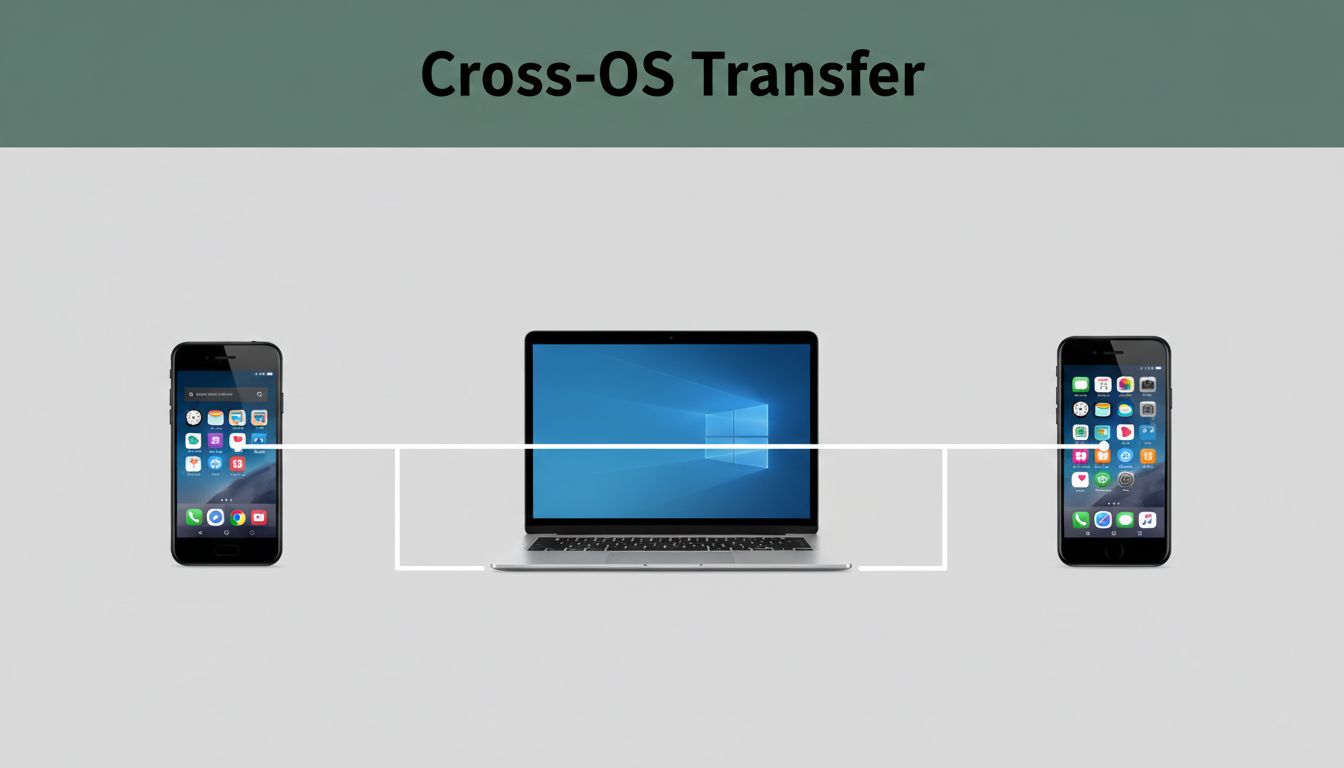
Picture this: you take vacation photos on your Android phone, then try to send them to your family member’s Windows laptop. One app wants an account. Another tool refuses to pair. Bluetooth crawls. USB feels risky.
Sharing files between different operating systems should not feel like a scavenger hunt. In 2026, you’ve got a few solid options that keep transfers local, move fast, and avoid sketchy workarounds. You’ll also learn how to pick the right tool for one-time sending versus ongoing syncing.
Next, let’s break down why this stuff gets complicated, even when both devices “support sharing.”
Why Sharing Files Between Operating Systems Feels So Complicated (And How to Fix It)
Most built-in sharing tools are designed for the ecosystem they live in. So when you mix brands and OSes, the rules change.
- Apple AirDrop works best inside the Apple bubble. If you’re going from Windows 11 to iPhone, AirDrop usually won’t help.
- Windows Nearby Sharing is great for Windows-to-Windows, but it can skip Linux or mobile setups depending on settings and discovery.
- Bluetooth sounds simple, yet it’s painfully slow for big videos. It also adds friction with pairing and file selection.
- USB cables can work, but they’re easy to forget. Plus, you still deal with storage permissions and “why didn’t it mount?” moments.
- Cloud tools (like Dropbox-style flows) can solve the problem, but they often require logins. They also upload the file, which may not feel great for sensitive docs.
In short, the built-in options often solve the wrong problem. You need cross-platform sharing that doesn’t care if the sender is on macOS, Android, or Linux.
That’s why the best approach is usually local transfer. The file moves over your home Wi-Fi, not the internet. And with the right tool, you can do it with no accounts and no confusing setup.
Master Local Transfers with LocalSend: The Free App That Works Everywhere
If you want an easy way to share files between different operating systems, LocalSend is the top pick for most people. It’s free, open-source, and designed for local network transfers across Windows, macOS, Linux, Android, and iOS.
LocalSend uses the same idea as AirDrop (nearby device discovery), but it works across OS boundaries. According to recent estimates, it has 10M+ downloads and strong ongoing use, with frequent updates. In practice, it feels like “tap and send,” not “wait and troubleshoot.”
One big win is privacy. Your files stay on your network. They don’t upload to a third-party server just to reach the other device. That matters when you’re sending client documents, family photos, or anything you’d rather not expose.
For downloads, use LocalSend downloads. Install it on each device you want to send from.
Here’s what you can expect in 2026:
- Fast transfers for photos, videos, and documents
- No cloud accounts
- Works across phones and desktops
- Better reliability on modern networks than Bluetooth-based methods
Local transfers are often the simplest fix, because they avoid both pairing drama and cloud logins.
Get Started in Minutes: Your LocalSend Step-by-Step Guide
- Install LocalSend on every device you’ll use.
Windows gets an EXE, macOS often uses a DMG, Linux varies by distro, and mobile uses the app store. - Connect all devices to the same Wi-Fi. Use your main network, not a guest network.
- Open LocalSend on the sender device.
- Tap Send, then pick the files.
- Choose the receiver device using its friendly name (for example, “Cute Potato”).
- Accept on the receiver, and the app should save automatically.
If it’s your first run, watch for prompts about network access and file permissions. Those small pop-ups decide whether transfers work smoothly.
What Sets LocalSend Apart from the Competition in 2026
LocalSend wins because it’s simple but capable. It’s usually faster than Bluetooth for big media. It also avoids cloud privacy worries that come with “upload first” workflows.
Compared with older methods like FTP or SSH, LocalSend feels much more human. You’re not managing ports or typing commands. Instead, you’re selecting devices and sending files.
Still, it has two limits:
- You need the same local network.
- You need to install the app on each device.
If your goal is “send right now, with no accounts,” that trade-off usually beats everything else.
Skip the Apps: Share Files Instantly Through Your Web Browser
Sometimes you don’t want to install anything. Or you’re helping someone once, not building a routine.
In that case, use browser-based tools. They work from Chrome, Safari, or Firefox, and they rely on Wi-Fi device discovery. When both devices sit on the same network, transfers can be surprisingly quick.
Most importantly, this approach still supports mixed operating systems. So Linux to iOS can work the same day you need it.
Snapdrop: Effortless Wi-Fi Sharing Just Like Magic
Snapdrop is a browser-based file-sharing site that feels like AirDrop, but it works across platforms. Open Snapdrop on both devices, and they discover each other over the same local network.
Use Snapdrop.net on each device. Then:
- Open the site in two browsers.
- Select the target device.
- Drop or choose the file.
- Download on the receiver.
Snapdrop also tends to work well for casual sharing like PDFs, photos, and small work documents. It’s ideal when you need a one-off transfer between, say, Linux and an iPhone.
The downside is simple: it’s local-network only. Also, for very large files, app-based tools sometimes feel more reliable.
SpeedyShare: Quick Links for Remote File Drops Anywhere
If you want to share beyond the local network, use a temporary link service like SpeedyShare. It lets you generate a link or QR code, so a person on another network can download the file.
This is great when you’re working remotely and still need speed without meeting up on Wi-Fi. Just know that link-based sharing can feel slower for huge files compared to local transfers, and time limits apply (like auto-deleting after a short window).
Keep Folders in Sync Automatically Across All Your Devices
One-time sharing is nice, but it’s not the whole story. What if you want the same photo folders on macOS and Linux? What if you want project files to stay aligned across Windows and mobile?
That’s where sync tools come in. Instead of “send once,” they watch folders and keep changes in sync.
The best tools also focus on privacy. They avoid a cloud middleman, or they secure transfers end-to-end.
Syncthing: Your Private Dropbox Alternative for Seamless Sync
Syncthing is like a private Dropbox that doesn’t rely on a hosted storage service. Install it on your devices, connect them, then choose which folders sync.
It uses strong encryption, and it transfers directly between devices when possible. Recent estimates show Syncthing has 80M+ downloads and a huge active user base, which usually means better compatibility and fixes over time.
Start with Syncthing downloads.
Pros that stand out:
- End-to-end encryption
- Works across Windows, macOS, Linux, and mobile
- Version history (helpful when files change)
- It can catch up later if devices miss a sync window
Setup takes some attention. You’ll link devices using IDs, then confirm shared folders. But once it’s running, syncing feels automatic.
KDE Connect for Linux Lovers Sharing with Phones
If you use Linux (especially Plasma), KDE Connect is a strong daily driver. It pairs your phone with your desktop and supports file transfers and extras like clipboard sharing and notifications.
It’s especially nice when you want “phone-to-PC” behavior. A lot of people use it for quick documents, photos, and copy-paste tasks without thinking.
You can grab downloads from KDE Connect downloads. Then pair your devices over Wi-Fi and start sending.
Pro Tips to Make Every File Transfer Safe, Fast, and Hassle-Free
A smooth transfer usually comes down to a few habits.
First, use the same secure Wi-Fi on both devices. Guest networks often break discovery. If you must use them, expect extra pairing trouble.
Next, test with a small file. It’s the fastest way to learn whether permissions and app prompts are set right. Then move the big folder.
Finally, keep your apps updated. Security patches matter, especially when tools run on your local network. In 2026, these projects get regular improvements.
Here’s a quick way to choose based on your goal:
| Tool | Best For | Main Benefit |
|---|---|---|
| LocalSend | Fast local sending | Simple cross-platform transfers |
| Syncthing | Ongoing folder sync | Encrypted syncing without cloud |
If you care about privacy, prioritize local transfer tools over “upload then download” services.
Conclusion: Pick the Right Tool and Move on
That first painful photo transfer story doesn’t have to repeat. If you want the easiest path, start with LocalSend for most cross-platform sends. When you can’t or don’t want to install apps, use Snapdrop for quick browser-based sharing.
For ongoing folder sync, turn to Syncthing and let it handle the updates in the background. What’s your most common mix, Windows to iPhone, or Linux to Android?