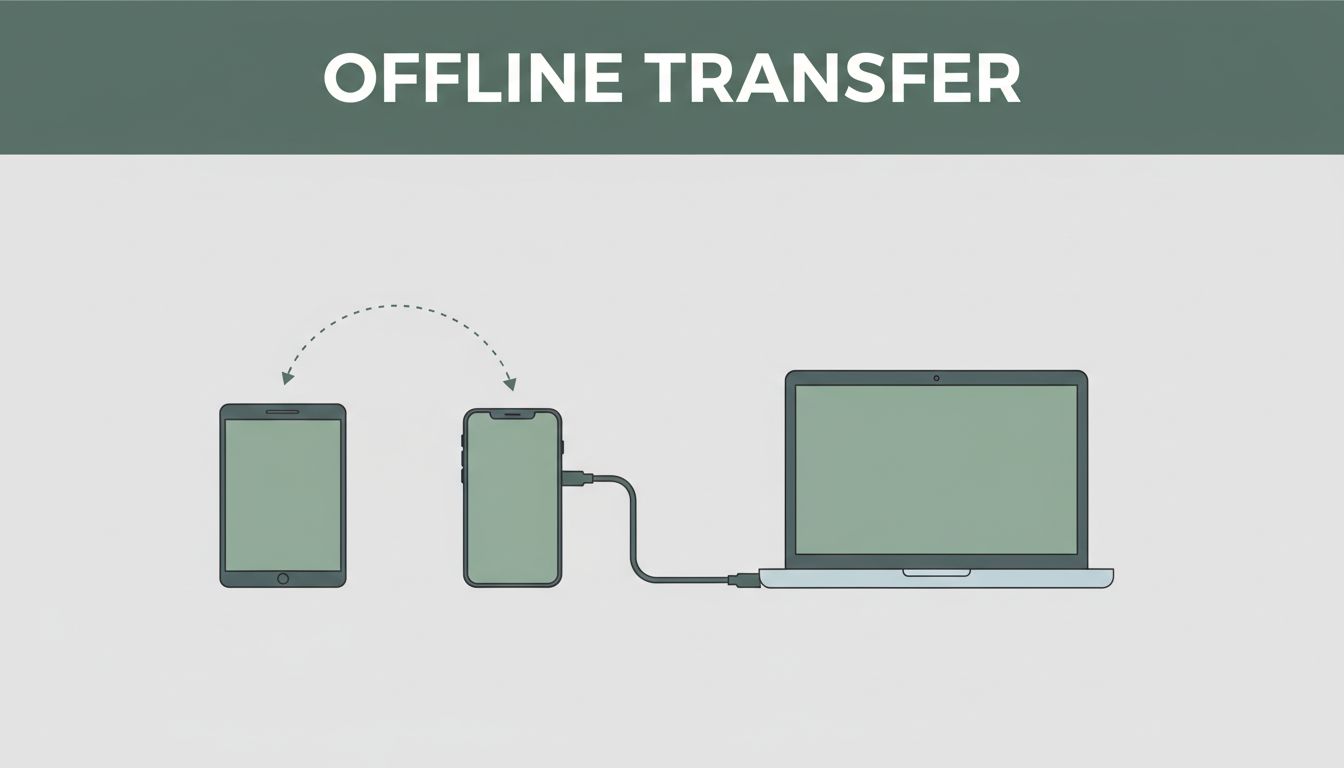
You don’t need internet to move your photos and files between devices, and that’s a huge win when you’re on a trip with no signal. Imagine you just took a bunch of pics, but your old phone and new phone can’t connect to Wi‑Fi, so everything stalls. In this guide, you’ll learn data transfer without internet using easy options like AirDrop (Apple), Quick Share / Nearby Share (Android), and direct Wi‑Fi apps like SHAREit, Xender, and Zapya.
If you have to move a lot fast, you can also use USB for near-instant copies, and Bluetooth for smaller files (slower but handy). With the right method, you can often hit speeds around 20MB/s or higher, without ads or data limits. Next, you’ll see how these transfers work, plus which option fits your devices best.
Start with Built-in Tools for the Easiest Offline Sharing
When you skip the internet, you still have solid options that feel almost like magic. The trick is using tools built into your devices, so you share over local connections (like Bluetooth and Wi‑Fi) instead of Wi‑Fi networks or mobile data.
Think of it like passing a note across a desk. No towers, no routes, no waiting. Just nearby devices talking directly.
Below are two of the easiest built-in ways to move photos and files offline, plus what to expect when things do not show up.
Master AirDrop for Seamless Apple Device Transfers
AirDrop is the simplest way to send stuff between nearby Apple devices without internet. It uses Bluetooth to find the other device, then uses a direct link for the actual transfer.
Use these steps for quick, clean sharing:
- Swipe down to open Control Center.
- Turn on Wi‑Fi and Bluetooth.
- Tap AirDrop.
- Choose Contacts Only or Everyone (use Everyone if you want it to show right away).
- Open Photos or Files.
- Select the photos, videos, or documents you want.
- Tap Share.
- Tap the person’s device in the AirDrop row.
If you want the full-quality photos and videos, AirDrop is your go-to. It also works well for sending an entire folder of files, as long as the item is shared in a way your device supports.
Password-related notes: if you need to move a saved item from one Apple device to another, AirDrop can transfer certain credential types during supported setup flows. For regular app logins, you still have better luck using the built-in password tools after the move.
If the devices do not show up, try these quick fixes:
- Restart both devices, then try again.
- Keep them close (about an arm’s length works best).
- Turn AirDrop to Receiving On, then repeat the send step.
- Turn off Personal Hotspot, if either phone uses it.
For official setup tips, see Use AirDrop on your iPhone or iPad.
Use Quick Share (Nearby Share) on Android Without a Hitch
Quick Share (used to be called Nearby Share) sends files between nearby devices without internet. It typically finds devices with Bluetooth, then switches to a faster local connection for the transfer.
Here’s how to use it with Android phones and, in many cases, Windows PCs too:
- Turn on Bluetooth and Wi‑Fi on your phone.
- Also enable Location (Quick Share often needs it to detect nearby devices).
- Open Quick Share settings and set visibility (choose a device group like Everyone or Contacts).
- On your phone, open the Photos, Files, or gallery item.
- Select the files, then tap Share.
- Tap Quick Share.
- Pick the nearby device when it appears.
- Confirm the transfer on the receiving device.
Quick Share can also handle groups, so you can share the same batch of files to more than one nearby device during a session.
In 2026, Android users can also send to Windows with the Quick Share app. That works even without a network connection, as long as the devices are close and the Bluetooth handshake can happen. For the best results, keep both devices awake and screen unlocked.
Want the default view to show devices faster? Set visibility to Everyone for a short time, then switch back to Contacts later. That keeps things simple and more private.
To set it up on Android, start with Use Quick Share on your Android device.
Boost Speed with Top Offline File-Sharing Apps
When you need speed and you have no internet, dedicated offline file-sharing apps can feel like upgrading from a bicycle to a motorcycle. They create a nearby connection (often Wi-Fi direct), then push data straight between devices.
Most people start with AirDrop or Quick Share, but cross-platform needs can be different. Maybe you have an iPhone and a Windows laptop. Maybe you need to send huge video clips to a group fast. That’s where SHAREit, Xender, and Zapya come in. They’re built for big transfers, batch sending, and quick pairing.
Still, speed depends on your environment. Walls, distance, and how busy your Wi-Fi channels are can slow things down. With that in mind, here’s how to get the best results with each app, plus what to expect when you move videos and photo folders.
Why SHAREit Stands Out for Huge Files and Groups
SHAREit focuses on heavy transfers. In recent updates, it’s been reported to reach up to 42 MB/s over local Wi-Fi connections, which is a big jump versus Bluetooth. It also supports group sharing, so you can send the same batch to multiple nearby devices in one session.
For the best speed with large media, follow this routine:
- Install SHAREit on every device that will receive.
- Open the app on the sender, then choose a transfer mode like Send.
- Turn on Wi-Fi for local discovery, and keep Bluetooth on if the app asks.
- Pair devices using QR or the on-screen device list.
- Select your files, then start the transfer when all receivers connect.
Once paired, SHAREit works like a tiny file relay race. Your sender becomes the “track,” and receivers latch on without hunting for the internet.
Handling videos and photos usually goes smoothly, because SHAREit can send media as files rather than compressing everything into a smaller preview. Still, you’ll see different outcomes depending on format. For example, MP4 videos tend to transfer reliably, while mixed folders sometimes take a moment longer to index.
One more thing: SHAREit offers cross-platform support, including Android, iOS, Windows, and macOS. That matters when your group includes different phone types. Also, the app includes add-on features like a file manager and content downloads. These extras can help, but they also introduce ads in many setups, so you may want to watch for them during installation and in-app prompts.
If you want the official starting point, use the SHAREit download page. Then stick to the default settings first, only changing options if you hit a connection issue.
Speed tips that actually matter
- Keep devices close, ideally within the same room.
- Use strong Wi-Fi signal conditions (avoid transferring right next to a microwave).
- Let the app finish scanning before you walk away.
If your transfer crawls, don’t assume the app is slow. Often, it’s the pairing handshake or distance that’s the bottleneck.
Finally, since SHAREit remains widely used worldwide, it’s often a top pick when friends already have it installed. Recent reports also show strong global usage (over 2 billion users), even if US availability can vary by store policy. In practice, many people still use SHAREit because it’s common and fast for large batches.
Go Ad-Free with Xender for Clean Transfers
Xender aims for a simple experience. People often pick it when they’re tired of extra clutter during transfers. Like SHAREit, it uses a nearby connection (often Wi-Fi) to move files without internet. Then it can push big folders fast, including videos and photos.
The biggest reasons Xender feels great are:
- Cleaner flow, especially when you compare it to ad-heavy transfer apps
- Multi-device sending, so one phone can feed more than one receiver
- Cross-platform support that commonly includes Android, iOS, and PC
Here’s a solid setup sequence that keeps transfers stable:
- Install Xender on the sender and every receiver.
- Open Xender, then let it create or detect a local connection.
- Pair devices using QR code, or by connecting to the device listed in Xender.
- Select files and start sending, then watch the progress bar until completion.
For videos, the key is patience at the start. The app needs a brief moment to index the files. After that, the actual transfer usually moves at a strong pace, with reports commonly placing it near the 40 MB/s range over Wi-Fi.
On the group side, Xender supports multiple receivers in one session. That feature helps when you’re passing media after a party or moving a class project folder to several classmates. If you’ve ever tried to send ten videos one by one, you know how painful that gets. With Xender, you keep it to one batch.
When you’re sending to a PC, the experience depends on the version you use, but you can often connect your Windows computer through Xender’s PC sharing mode. Then you pick files on your phone, and the PC shows up as another receiver target.
However, here’s the tradeoff. Xender, like most offline share apps, needs installation on each device. Also, your transfer speed will vary with device hardware and Wi-Fi settings. If you want a smooth run, keep Wi-Fi on, keep devices awake, and avoid switching networks mid-transfer.
If you’re looking for a starting point, you’ll find download options through third-party sites online. Still, for safety, confirm the source you use before installing, and avoid unofficial downloads if you can. (This matters most with apps that include extra components.)
Pick Zapya for Multi-Platform Groups Up to Five Devices
Zapya stands out when you’re moving files across different platforms and you want group sharing that stays manageable. It’s known for multi-platform support, including Android, iOS, and PC (Windows and Mac variants exist). Even better, many users appreciate that it works well for group transfers without turning the session into chaos.
In reports and user discussions, Zapya is often described as fast over local connections, commonly near 10 MB/s for typical transfers. It’s not always the fastest number on paper, but it’s consistent enough for real photo dumps and mixed folders. It’s also popular because it handles group sending up to five devices in many setups, which is perfect for family, small teams, and weekend trips.
To get good speed with Zapya, pairing matters more than people think. Use this approach:
- Install Zapya on the sender and on every receiver device.
- Open Zapya and choose the offline share option.
- Scan the QR code or connect using the on-screen device link.
- Select your photos, videos, or documents, then start sending.
During the transfer, try not to lock the screen. Screen lock can cut the connection, especially on phones with power-saving modes. Also, keep your devices on the same physical area. When devices drift far apart, the app often has to renegotiate the link.
For cross-computer needs, Zapya is useful when your group includes different OS types. Someone might have an iPhone, another person might have a Windows laptop, and you might still want one quick send session. Zapya can help you avoid switching tools mid-transfer.
One more practical note: speed can dip if your folder includes a lot of small files. That’s common with photo libraries. In that case, sending fewer larger batches often feels faster than selecting thousands of tiny clips at once.
If your group has five people or less, Zapya’s group limit becomes a strength, not a problem.
So, when you want offline sharing that works across phones and computers, and you plan to send one batch to a small group, Zapya gives you an easy path. It’s especially helpful when you don’t want to juggle multiple links, multiple steps, and multiple apps for one transfer session.
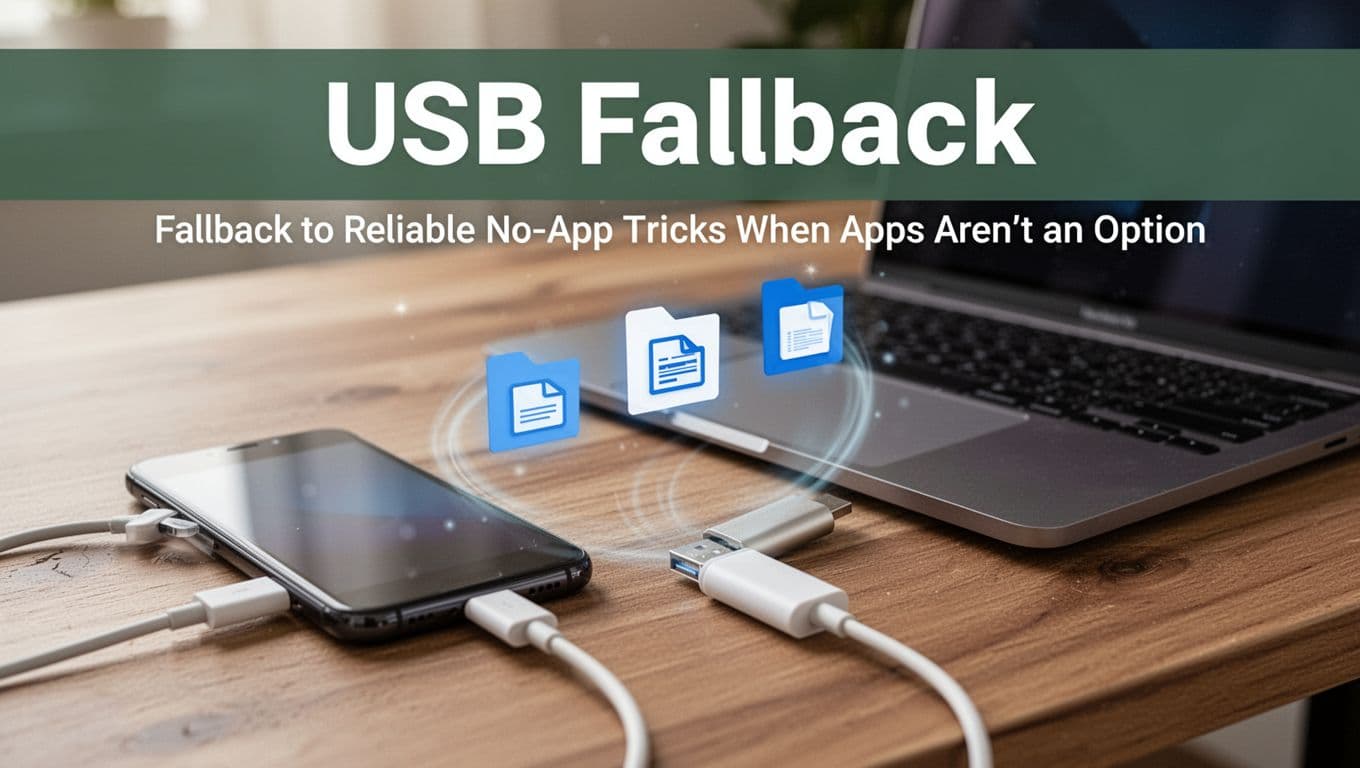
Fallback to Reliable No-App Tricks When Apps Aren’t an Option
When you cannot install apps (work phone rules, no app store, or you forgot them), you still have options. Think of this section as your “no excuses” toolbox. You can move files with cables, built-in wireless features, or a simple local web setup.
Plug and Copy with USB Cables or Flash Drives
USB is the straight line. It works because the phone talks to a computer like a storage device, then you copy files in Finder or File Explorer. If you have an Android phone with USB-C, USB OTG can let you plug in a flash drive directly. For many people, this feels like using a mini external drive.
Start with a simple setup:
- Plug in a USB-C cable (or OTG adapter) to the phone.
- Connect the other end to a computer (or a flash drive).
- On the phone, choose File Transfer (sometimes labeled MTP).
- Then drag-and-drop your photos and videos.
For Android OTG basics, see transfer via USB OTG steps. For Android-to-USB drive walkthroughs, copy files to USB on Android.
Two formatting tips help a lot:
- If the drive is not detected, try formatting it as exFAT (best for mixed devices).
- If you use a phone-to-drive adapter, use a flash drive that is USB-C or OTG-friendly.
If the drive shows up but files won’t copy, check the file system format first.
Bluetooth Basics for Quick Small-File Shares
Bluetooth is the “paper plane” option. It sends small payloads without setup headaches, but it stays slow compared to Wi-Fi and USB. That’s fine for short photo sets, a single PDF, or a few videos.
On most phones, the flow looks like this:
- Turn on Bluetooth on both devices.
- Pair them (accept the prompt on the receiver).
- On the sender, open Photos or Files.
- Tap Share, then choose Bluetooth.
- Select the paired device, then accept on the other phone.
Because Bluetooth uses pairing and repeated handshakes, it can drain battery. Keep screens awake, and try not to send huge media batches.
Also, be picky about what you share. Small files go through smoothly. For big videos, you’ll often wait a long time, or the transfer might fail mid-way. In those cases, switch to USB or a local Wi-Fi method instead.
If you’re bouncing between Android and iPhone, Bluetooth file sharing can be more limited. Many guides recommend using an intermediate method or app on the sending device. Still, if your devices offer Bluetooth share, pairing plus acceptance on both sides is the core requirement.
Hotspot Hack: Share Files via Local Web Server
When you need Wi-Fi speed, but you still want no internet, use a hotspot and a browser. One phone creates a hotspot network. The other device joins it, then uses a local page or file server to upload and download.
The idea is simple: the hotspot device becomes a mini building server, and clients connect to its address. On Android, you can usually do this through built-in sharing features or a local server-style tool that runs in-browser. On iPhone, you typically join the hotspot, then use a built-in sharing flow when available.
A practical way to think about it:
- Turn on hotspot on the first phone (name it something easy).
- Join that hotspot on the second phone.
- Open the local share page or file server address.
- Upload from the sender, download on the receiver.
Security matters here. Hotspots can expose your transfer to anyone nearby if you use a weak password. Also, do not turn off device lock, and do not share to “everyone” on an open network.
If you want a visual walkthrough concept, this video shows a no-internet local transfer approach: wireless file transfer without internet.
Pro Tips to Make Every Offline Transfer Foolproof
Offline transfers fail for the same reasons online uploads do: one device sleeps, visibility is wrong, or you try to move too much too soon. So before you hit “Share,” set yourself up for a smooth handoff.
Think of it like passing a hot sandwich. If your hands are cold, the sandwich drops. If you plan your grip, it lands safely.
Set your devices up to avoid the top transfer failures
Most “transfer failed” moments come from setup issues, not the method you picked. Start with the basics, then move to the trickier steps.
First, close background apps on both devices. Many transfer tools rely on a clean, steady foreground connection. After that, check storage and battery. If the receiver runs out of space, the sender cannot “undo” the transfer.
Next, keep the devices close. In practice, stay within about 30 feet. Also, keep both devices awake with the screens on. Power saving modes can cut wireless handshakes mid-transfer.
Then do a quick test run. Send a small photo or a short file bundle first. If that works, your bigger batch has a clear path.
Speed tip that helps with most offline tools: turn off data, keep airplane mode off. That sounds odd, but the goal is to stop the device from trying to route traffic over the carrier. Meanwhile, you still want Wi-Fi and Bluetooth to stay active.
Finally, update OS versions and the sharing apps you use. Old builds can break discovery. For Quick Share, AirDrop, and cable flows, updates often fix pairing quirks and transfer hangs.
The fastest way to avoid delays is to prevent sleep, pairing timeouts, and “not enough space” errors before you start.
Use the right privacy settings (and treat public discovery like a risk)
Privacy is not just about encryption. It also depends on who can see your devices during the handshake.
For AirDrop, choose Contacts Only when possible. If you must use visibility for quick pairing, switch it back as soon as the transfer finishes. Also, confirm both devices are unlocked and ready to accept.
For Quick Share, pick the narrowest visibility that still finds the other device. “Your devices” or “Contacts” is safest. “Everyone” works for tricky discovery, but it broadens the audience nearby.
Also, avoid public sharing tools that let random devices browse your connection. Even if the files are protected during transfer, you still increase the chance of confusing device matches.
If you want a strong cross-OS option without leaning on random nearby discovery, consider open local transfer apps. For example, LocalSend uses local discovery and direct transfer without requiring internet access. You can read why it works well for nearby sending in LocalSend as a free way to transfer files over Wi-Fi. Use it carefully, and still keep the devices close.
When security is non-negotiable, use USB for big files, or use built-in tools with explicit visibility controls. Cable transfers are hard to spoof because the link is physical.
Make large offline transfers behave: batch size, cable rules, and retries
Large files break offline transfers in predictable ways. Your goal is to reduce file count, avoid index-heavy folders, and keep the channel stable.
With AirDrop and Quick Share, transfer fewer items per batch when you move large photo libraries. Thousands of small files can create long indexing times. Instead, send the same collection in 2 to 6 smaller groups.
If your transfer supports folders, use it only when the sender and receiver handle that content cleanly. Otherwise, select key folders, not everything at once.
For USB, follow the “three rules” mindset:
- Use a quality cable (USB 3.0 or better when available).
- Set the phone to File Transfer mode, not Charging-only mode.
- Keep the phone unlocked during copying.
If the receiver computer has trouble seeing your phone, swap ports or cables first. Then check whether the phone is set to the right transfer mode again.
Apps like SHAREit and Xender can still work offline, especially across mixed device types. However, treat them like public spaces, not private rooms. Install from trusted sources, avoid sketchy APKs, and watch for extra download prompts. If a transfer repeatedly fails, restart both devices and try again with a smaller batch.
For any method, use retries intelligently. If the progress bar stalls, cancel, wait 10 seconds, then rerun the transfer. Do not start a new transfer while another one is still negotiating.
FAQ: quick fixes for cross-OS and big-video situations
Cross-OS works, but you need the right pairing expectations. AirDrop is Apple-to-Apple, and Quick Share mainly targets Android and supported nearby devices. If you mix iPhone and Android, test the sender first: set AirDrop to be discoverable long enough for the match, then switch it back. On Android, Quick Share visibility should be set to the narrowest option that still finds the iPhone. If you want a more secure cross-platform approach, LocalSend can help because it sends directly over the local network. For Android-side security details on how Quick Share-like discovery works, see Google’s coverage of Quick Share support.
Large videos usually fail for one of three reasons: the file is too big for the method, the transfer channel drops, or the folder has too many small files. Start by trying one video file by itself. If that succeeds, bundle the next 3 to 5 videos, not the whole library. Also, keep screens awake, reduce movement between rooms, and avoid battery saving modes.
What if you see the other device but the transfer never starts? Cancel the attempt on both devices, then restart discovery. With AirDrop, confirm both devices are unlocked and AirDrop is set correctly. With Quick Share, check notification prompts and make sure the receiving device is set to receive. Often, the fix is simple: toggle Bluetooth off and back on, then repeat the send step.
Still stuck? Move to USB for big files, especially on a laptop-to-phone or phone-to-computer setup. USB is the most dependable when speed and reliability matter.
For one last safeguard, test with a small file right before the main batch. It’s the offline version of checking the road before you drive fast.
Conclusion
If you’re trying to transfer data between devices without internet, your best path is clear. Use built-in tools first, Quick Share or AirDrop, because they set up fast and work well with local connections. When you need cross-platform moves and big batches, an offline app like Xender often performs better than older options.
For the strongest reliability, pick the method that matches your devices. Same-OS? AirDrop or Quick Share. Mixed brands? Use Xender or a direct local tool (like LocalSend) if both sides support it. And for huge files, USB is still the safest bet, since it avoids wireless pairing issues.
Try one transfer right now with a small file before you move your full library. Then you’ll know your devices are ready, your link stays stable, and you won’t waste time mid-transfer.
What’s your go-to offline method when Wi-Fi is out, AirDrop, Quick Share, or USB? Share it in the comments, and subscribe for more tech tips. With these options, you can ditch internet dependency and move what you need whenever you want.