Have you ever watched a “sending…” bar crawl while you try to share a vacation folder? File compression helps with that. Think of it like squeezing a balloon. You don’t remove what’s inside, you just remove empty space so the package becomes smaller.
File compression is a way to shrink files by removing redundant data. As a result, your files use less storage and move faster during file transfers. It’s why zipped photos often send in a fraction of the time, and why video sharing feels less painful.
In 2026, file sizes keep growing. Photos and videos now trend larger each year because phone cameras push higher detail. One US trend estimate points to photos up around 30% and videos up around 50% year over year, especially with 4K and longer clips. Meanwhile, your upload speed does not scale at the same rate.
So, what exactly is happening when you compress a file? Next, you’ll learn how compression works (lossless vs lossy), why it speeds up transfers, and what tools to use for quick results.
How File Compression Actually Works to Shrink Your Files
Compression software scans data for patterns. Then it saves those patterns in a more efficient way. A simple example looks like this: if you have AAAAA, a smart method can store it as 5A. In other words, it records the count and the repeated character.
The core process has two stages:
- Compression: the tool analyzes the file and rewrites it more compactly.
- Decompression: the receiver (or your system) expands it back to the original form.
This is why compression doesn’t “delete your content.” It changes how the same content is represented.
Ever wondered why your vacation photos take forever to send? Most of the waiting time comes from uploads. Upload speed is often the slow link, even when your download is fast. Compression reduces the number of bytes that must cross your connection.
Here’s a key point that’s easy to miss: compression is different from bundling.
- Compression shrinks the data inside a file.
- Archiving packages multiple files into one folder-like file (like a
.ziparchive).
Many tools do both at once. For example, when you create a ZIP file, you usually bundle multiple files and compress them too.
A quick look at encoding (no heavy jargon)
Most compression schemes rely on the same idea: data often repeats. So instead of storing every repeated bit, the compressor stores shorter instructions.
One common method is run-length encoding (RLE). It works great when lots of nearby pixels share the same color, like a clear blue sky. The compressor might store something like: “200 pixels are the same color,” instead of saving every pixel separately.
Text files can also compress well. English contains repeated letters and common word patterns. That’s why a plain .txt file often shrinks a lot after compression. Images can shrink too, but how they shrink depends on whether the method is lossless or lossy.
For a deeper look at how different compression types compare, see lossless vs lossy compression choices.
Where ZIP fits in
If you’ve used .zip, you’ve already met the idea. ZIP is an archive format that often uses lossless compression. That means it can restore the exact original files after extracting.
Lossless Compression: Keep Every Detail Intact
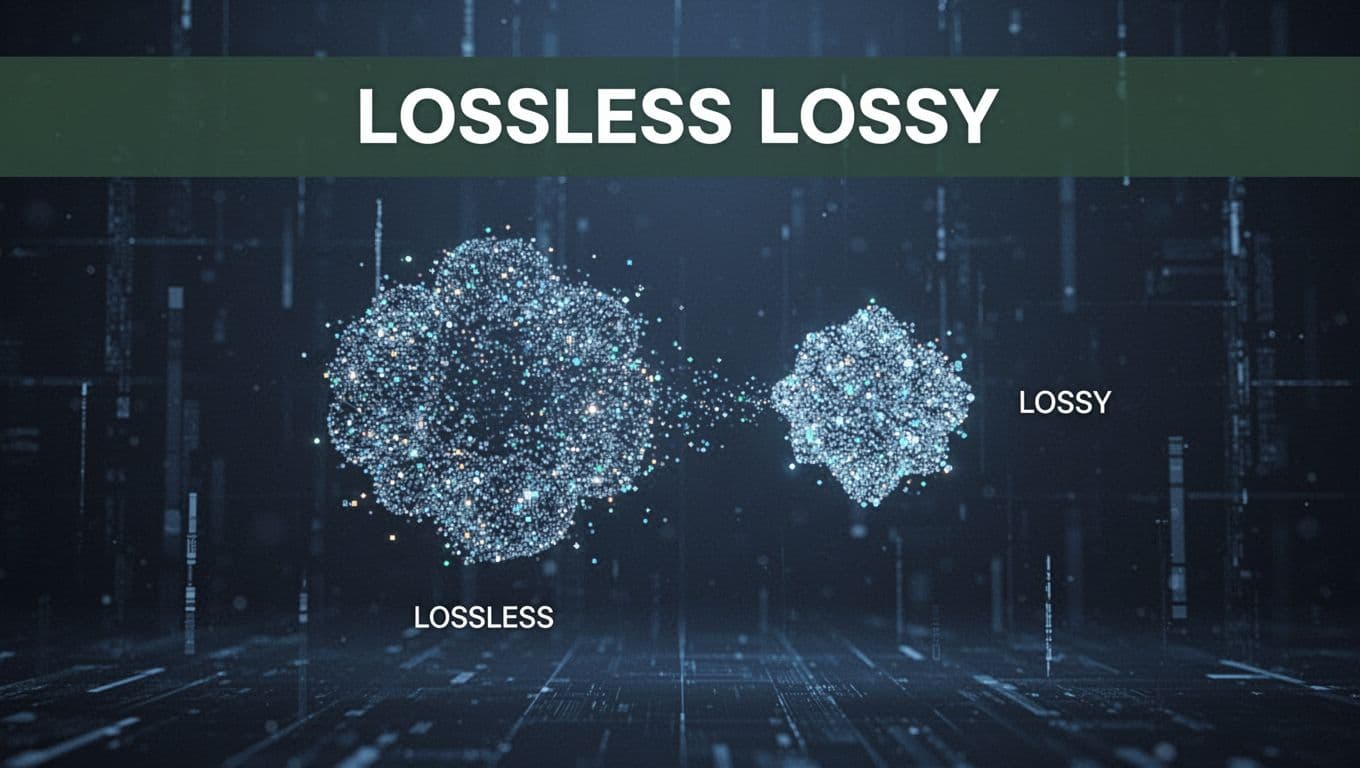
Lossless compression shrinks a file without losing any information. When you unzip it, the output matches the original byte-for-byte.
This makes lossless methods perfect for files where accuracy matters. Think:
- Documents and spreadsheets
- Source code
- PDFs that must stay exact
- Any file where you can’t afford “almost the same”
In practice, text often compresses a lot. Many real-world reports show text shrinking by 50% or more, depending on the content. Images can also compress losslessly, but not as dramatically as text in many cases.
ZIP files are common examples. Other lossless formats include .7z (often used with very strong settings) and .rar (depending on how it’s created). For raw formats, you might also see specialized options for certain file types.
If you want a clear way to picture it, imagine a receipt. Lossless compression folds the receipt neatly. You can unfold it later and read every word exactly.
However, lossless has a trade-off. It usually can’t cut file size as much as lossy compression. So you don’t always get the biggest size drops, especially with photos and videos.
When lossless is the right call
Lossless is a safe default when:
- You’re sending important work files
- You need the original quality back
- You’re worried about edits, signatures, or legal text
If you compress a document lossily, you may not notice changes right away. Still, the data might not match the original.
For a friendly breakdown of what lossless means in real terms, this guide on lossy vs lossless compression can help you pick faster.
Lossy Compression: Smart Cuts for Media Files
Lossy compression reduces file size by permanently removing data. Some of that removed data is the kind your eyes or ears tend not to notice.
This is why lossy is so common for media. Photos, audio, and video already tolerate some “good enough” change. So lossy methods can cut sizes dramatically.
Common lossy examples include:
- JPEG for images
- MP3 for audio
- MP4 for video
The key benefit is bigger size drops. In many cases, lossy can shrink media by a lot more than lossless.
The cost is also clear. Once you lose data, you can’t get it back. Re-compressing lossy files can make quality degrade further, because you’re repeatedly removing the “hard to notice” details.
A helpful analogy: lossless is like taking a careful photo of a document. Lossy is like summarizing it. The summary can be great. But you can’t retrieve the exact original pages from the summary alone.
What lossy tries to remove
Lossy compression usually targets things like:
- Tiny color differences in areas with smooth gradients
- Sounds masked by louder frequencies
- Visual detail that blends together at typical viewing sizes
So your file gets smaller, and it transfers faster. That matters a lot when you share media from your phone.
As a result, it’s a smart choice for:
- Sending photos to friends
- Sharing clips on social apps
- Uploading previews when you don’t need maximum detail
Why Compression Makes File Transfers Faster and Cheaper
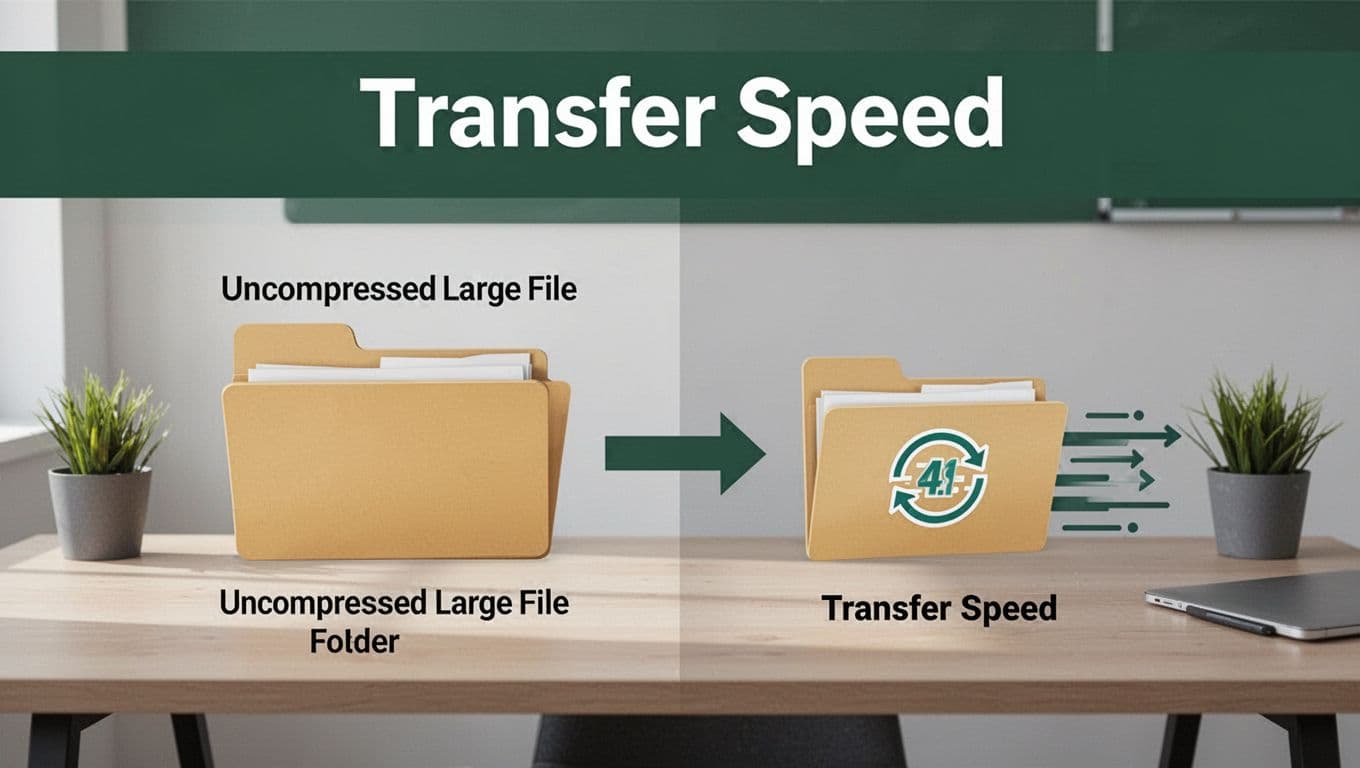
Compression speeds up transfers because fewer bytes need to move. Less data also means less time waiting on your connection.
That said, the math matters most on uploads. In 2026, US fixed broadband averages around 235–306 Mbps download and 32–55 Mbps upload. Mobile networks can be fast too, often 200–245 Mbps download, but upload can still feel slower.
So compression helps most when:
- Your upload is limited
- You’re sending big folders
- You’re on a metered plan
- You’re sharing over busy networks
It can also help you pass email and messaging limits. For example, many common limits are tight:
- Gmail personal sending limit is 25 MB total (often less in practice)
- Outlook.com is often 20–25 MB
- Larger options exist in paid tiers, but rules vary
Compressing can turn an “almost too big” attachment into something that gets delivered.
Real-world example: imagine a folder that totals 100 MB. If compression cuts it roughly in half (common for some media sets and many mixed folders), you might land near 50 MB. On a decent connection, that can turn minutes into seconds.
For a practical view of why compression helps file transfer speed and efficiency, this compression and data transfer explanation is a useful reference point.
Storage savings that matter on phones and in the cloud
Compression helps in two places:
- During transfer (faster upload and download)
- After transfer (smaller stored copies)
When cloud tools store archives more efficiently, it can reduce costs and speed up syncing. Also, phones fill up fast. Compressing before saving can buy space.
And since media sizes keep climbing, this gets more important each year. High-res photos and 4K video produce huge files. Without compression, sharing and backing up can feel like an endless task.
Real Speed Gains: Before and After Compression Times
Speed gains depend on your connection and file type. Still, the pattern is consistent: smaller files finish sooner.
Here’s a simple “back of the envelope” comparison. These times assume similar upload conditions and mostly scale by size.
| File size (uncompressed) | File size (compressed) | Estimated upload time* |
|---|---|---|
| 500 MB | 200 MB | About 10 min to 4 min |
| 250 MB | 120 MB | About 5 min to 2 min |
| 100 MB | 50 MB | About 2 min to 1 min |
*Times vary by network. Use them as a feel for the change.
Why do these gains happen? Because you’re not waiting on “processing” as much as you think. Compression takes some time, but it’s often faster than uploading the extra bytes.
In addition, many cloud apps compress certain uploads in the background. That means you might see faster sharing even if you don’t manually zip first.
Bandwidth and Storage Wins for Everyday Users
Compression can reduce bandwidth, which helps in more situations than you expect.
- Mobile data plans: if you’re uploading photos on the go, smaller files cut data use.
- Slow connections: even when speeds are low, compression helps you get the file across sooner.
- Large photo batches: sending 300 images one-by-one is slow. Zipping them often performs better.
Also, if you use cloud sharing, compression can reduce the work your upload does. Then the cloud can store and share the archive more efficiently.
In 2026, media formats are bigger because cameras and editing tools keep improving. It’s great for quality. But it also means you need better habits for sharing.
That’s where compression earns its place. It’s a simple step that gives quick results, without requiring new software skills. Most people already use archives like .zip, and that’s a great start.
Best Tools and Formats to Compress Files Right Now
When you’re choosing tools, match them to your goal.
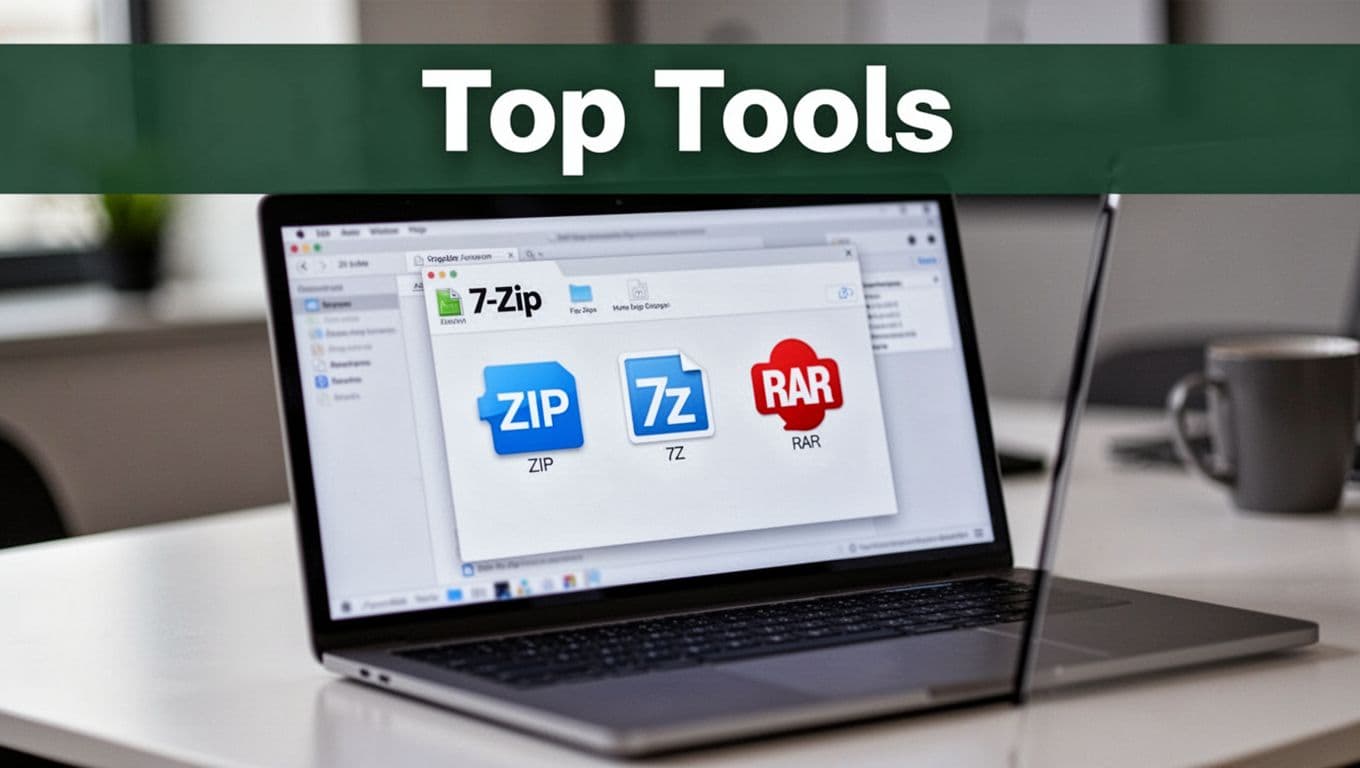
- If you want max compatibility and easy sharing, use ZIP.
- If you want strong compression ratios, use 7z (often created with 7-Zip).
- If you’re working with older workflows, RAR can fit.
For file compression tools, one comparison guide that’s fairly helpful is 10 best file compression tools in 2026. It also distinguishes optimizers from archivers, which is useful when you’re unsure what you need.
Common tools you’ll see in 2026:
- 7-Zip (free, great compression)
- WinRAR (paid, widely used)
- WinZip (paid in many cases, popular)
- Windows Compressor (built in, simple)
- macOS Archive Utility (built in)
- Online compressors (fast for one-off jobs), like Compress2Go or image-focused tools for photos
If you’re starting from scratch, the easiest workflow is:
- Right-click a file or folder
- Choose Compress (or Add to archive)
- Pick ZIP or 7z based on your needs
ZIP is usually the best “send it anywhere” option. If you control both ends and want smaller sizes, use 7z.
Free vs Paid: Top Picks for Beginners
If you want the simplest way to start, begin with free tools:
- 7-Zip for Windows
- PeaZip as another Windows-friendly option
- Online tools when you don’t want installs (but be cautious with private files)
Paid options can make sense when you compress often:
- WinRAR for strong archive features
- WinZip for a familiar experience
Here’s the beginner rule: pick a tool, learn the basic “compress folder” flow, then stick with it.
Conclusion
Compression is like squeezing a balloon. You keep the same contents, but the package gets smaller. When you use file compression, transfers get faster because fewer bytes travel over your connection.
You now know the big split. Lossless compression keeps files exact for docs and work. Lossy compression makes media much smaller, at the cost of some permanent change.
Finally, you’ve got a practical path forward. Use ZIP for easy sharing, choose 7z when you want better size cuts, and compress before you send big folders.
Ready to make your file sharing effortless? Try compressing your next big photo folder and watch the upload bar move faster.