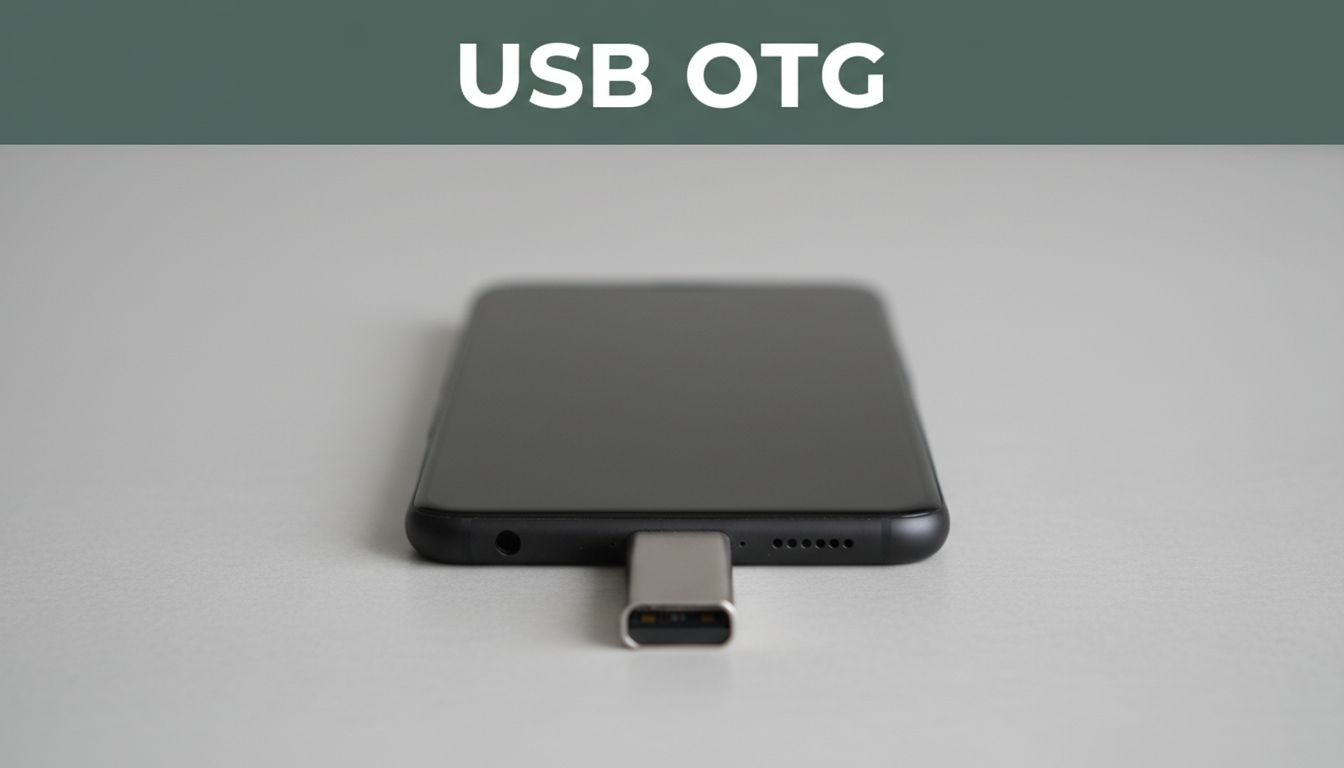
You ever land at a hotel, need to move photos, and realize your laptop is dead weight? You plug in a USB drive, and nothing happens. That’s where USB OTG comes in.
USB OTG lets your phone act more like a computer. Instead of being only a device that gets files, it can also “host” other USB gadgets. In other words, your phone can talk to a flash drive, keyboard, camera, or even a printer.
If you’ve seen the term USB OTG and wondered what you can actually do with it, you’re in the right place. We’ll cover what USB OTG means in plain terms, how it works, and the most useful ways to try it. Then you’ll learn how to check support and fix common hiccups.
What Exactly Is USB OTG and Why Does It Matter for Your Phone?
USB OTG (On-The-Go) is a USB feature that lets two devices connect directly. Usually, one device must be the “host” (most PCs), and the other is the “peripheral” (like a mouse or drive). With USB OTG, your phone can become the host. You connect a USB accessory straight to it, then the phone handles the connection rules and power.
A simple way to picture it: your phone becomes the boss. Instead of waiting for a computer, it tells the USB device how to work.
For a technical but clear definition, see USB On-The-Go basics on Wikipedia.
Here’s why that matters in real life:
- Less gear to carry: You can travel with one phone and still access USB storage.
- Faster file handling: Move files without needing a laptop nearby.
- More input options: Plug in a keyboard or mouse for easier typing.
- Extra device support: Some setups work with cameras, gamepads, and printers.
Most Android phones support OTG, especially newer models. iPhone support is the big catch. iOS generally does not offer USB OTG host behavior in the same way as Android, so you may not get the results you expect.
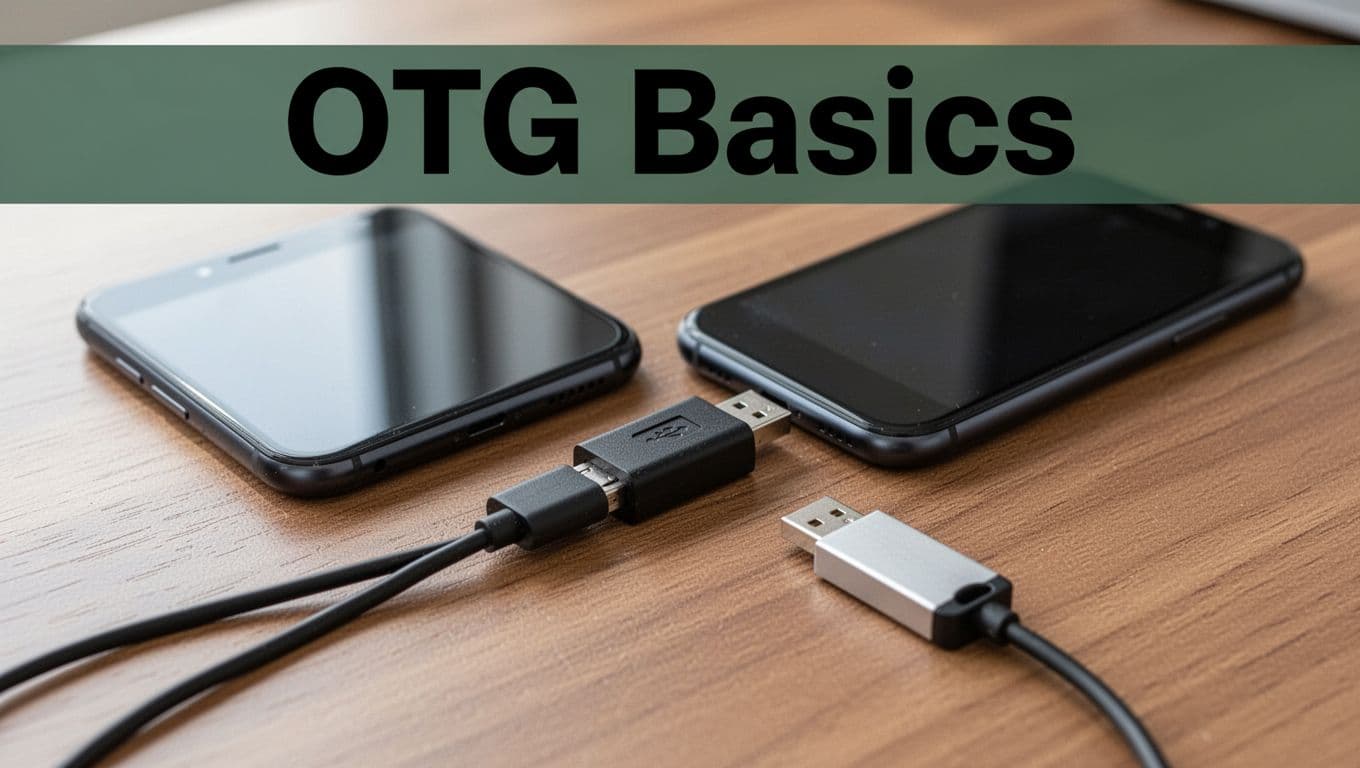
How USB OTG Works Without the Tech Speak
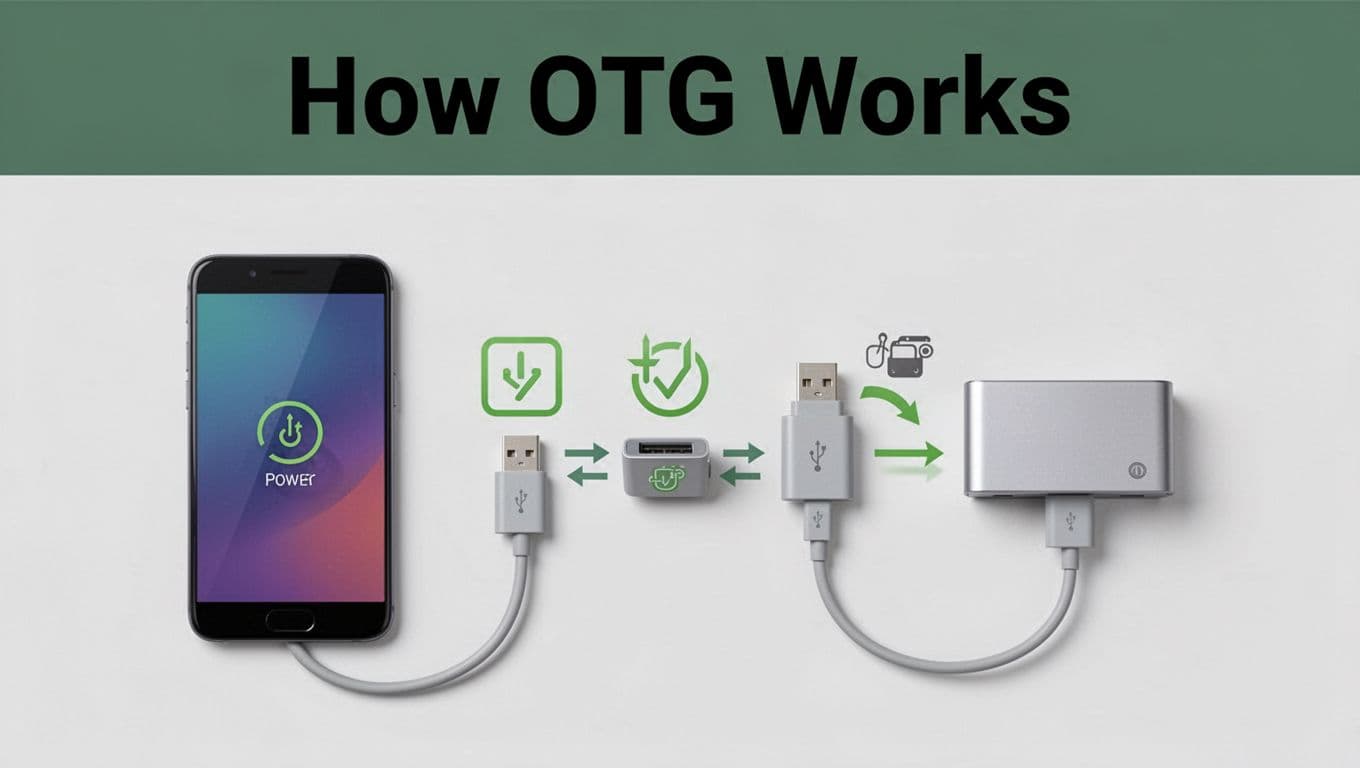
USB OTG relies on one key idea: the cable and adapter help the phone detect the role. Your phone then supplies power and controls communication.
Think of it like this:
- You plug in an OTG adapter (or OTG cable) to your phone’s charging port.
- Your phone senses the accessory through the adapter.
- The phone switches into host mode (the “boss” role).
- It powers the USB device and reads it as a connected peripheral.
If you want a more technical explanation of the host and peripheral roles, Total Phase explains USB OTG and how it works.
Here’s what makes the setup feel different from normal USB:
- With normal USB, a PC is usually the host.
- With OTG, your phone becomes the host so the USB drive or gadget can respond.
Adapter types matter too. Many OTG adapters are made for either:
- Micro-USB phones (older Android models)
- USB-C phones (most newer Android phones, plus some tablets)
In most cases, the phone handles role switching automatically once you plug in the right adapter.
Cool Ways to Use USB OTG Every Day
USB OTG is useful when you want your phone to connect to “normal USB stuff.” That could be storage, a controller, or a real mouse. And once you’ve tried it, you’ll wonder why you ever depended on a laptop for everything.
If you want a quick refresher on the variety of supported devices, Digital Trends shares how USB OTG works with drives and more.
Start with these common uses:
- Open files from flash drives for quick photo, doc, or video access
- Use an SD card reader to pull camera photos onto your phone
- Connect a USB keyboard and mouse for faster typing
- Transfer files from a camera or card reader during travel shoots
- Play games with a controller that feels more like a console
- Try printer access when the right app and printer support exist
Then, in each category, you’ll get the best results when you match the right adapter and avoid devices that need too much power.
Boost Storage on the Go with Drives and Cards
One of the best USB OTG wins is storage. You can plug in a USB flash drive and browse files in a file manager app. This works well for backups, sharing, and freeing space during trips.
For example, you can copy a folder of photos to a flash drive, then delete the originals from your phone (if you’re confident you copied everything). Or you can bring files from a drive to your phone without waiting for cloud uploads.
One caution: some drives and card readers draw more power than a phone can provide. If a flash drive works for a minute then disconnects, power is usually the reason. For heavier storage like larger USB hard drives, use a powered USB hub plus keep your phone charged.
Also, file formats matter. Many drives work best with FAT32 or exFAT. If your drive uses NTFS, your phone might refuse to read it.
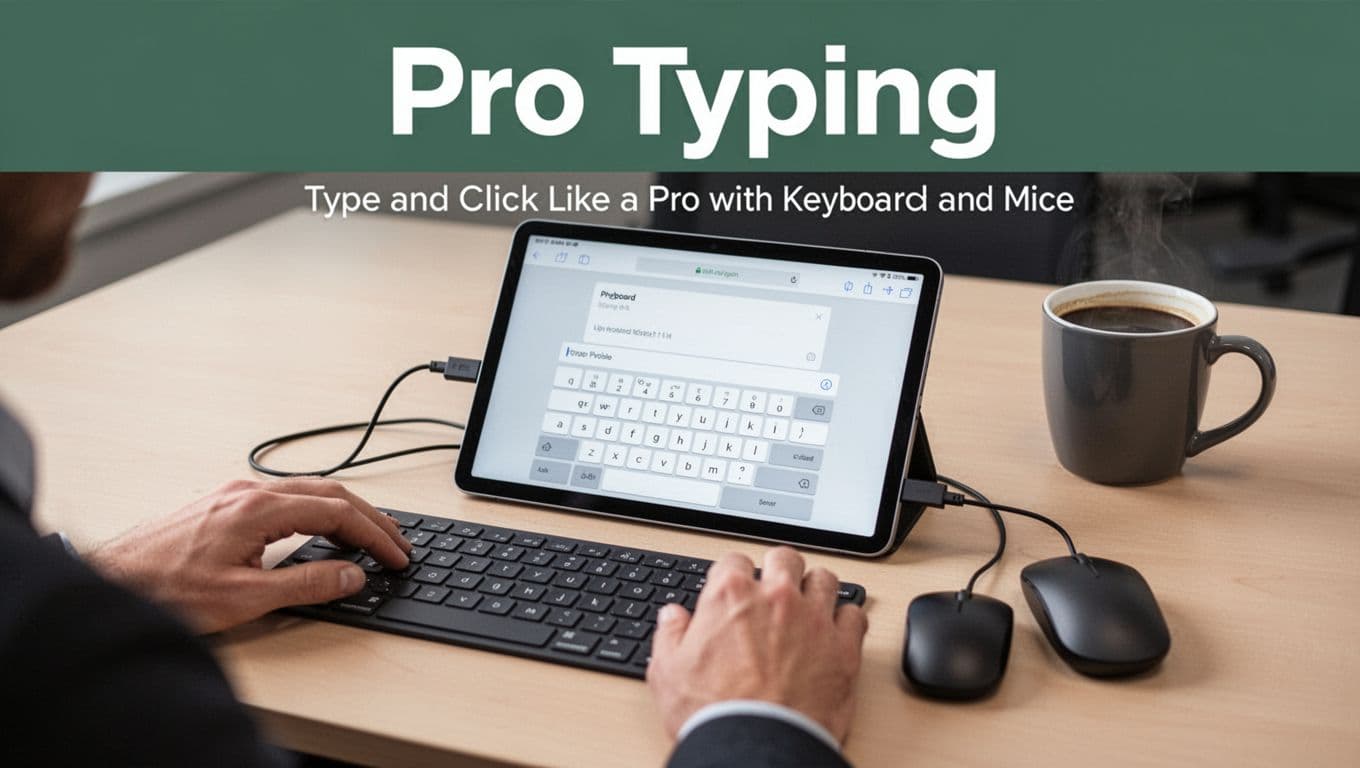
Type and Click Like a Pro with Keyboards and Mice
A keyboard and mouse can turn your phone or tablet into a mini workstation. Email feels less painful. Editing a long message gets easier. Spreadsheets look more manageable too.
With USB OTG, the connection is usually simple: plug in the keyboard, then tap or click to interact. Many apps will respond automatically once the phone sees the USB devices.
If you use a tablet for work, this can be a big upgrade. You can also take advantage of Android features on some devices. For instance, Samsung DeX setups often depend on whether your phone supports OTG host features.
Tip: choose a compact keyboard layout. That keeps it easy in bags, not just on desks.
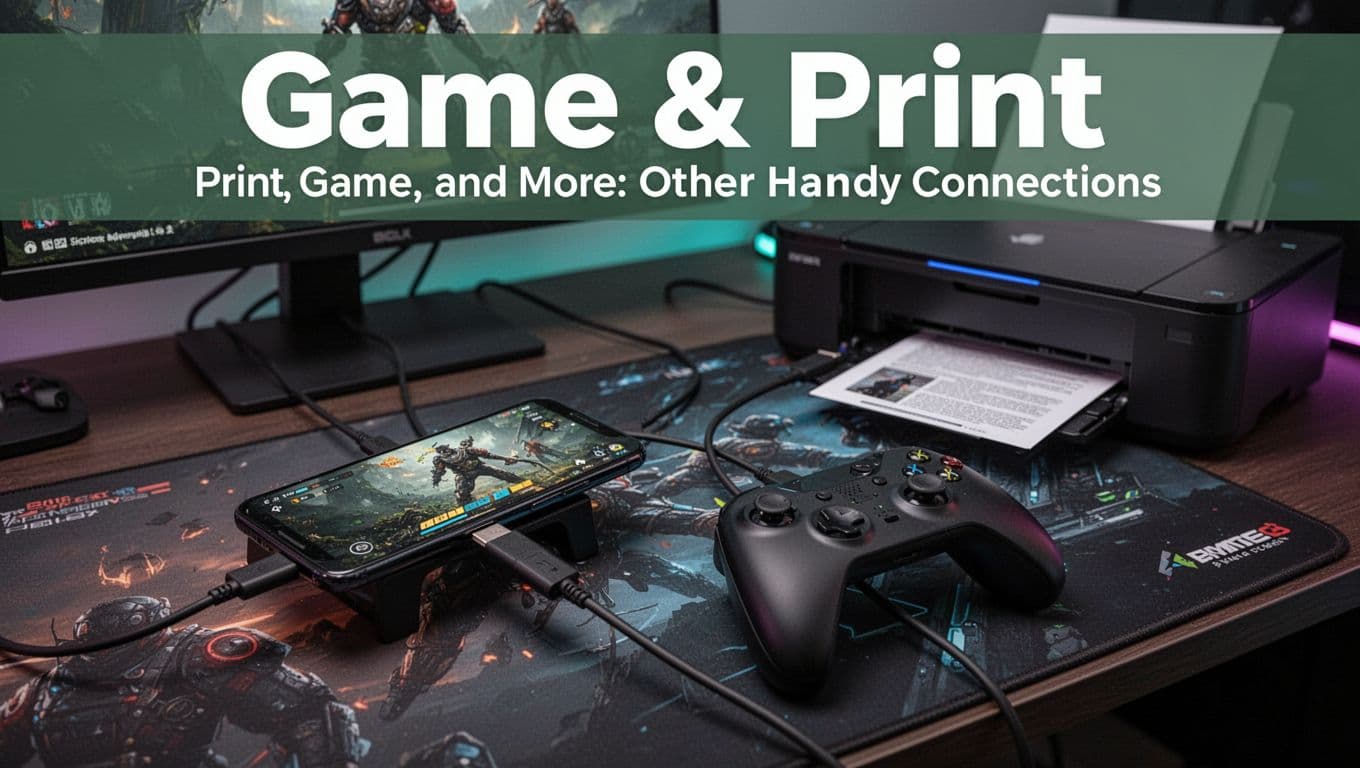
Print, Game, and More: Other Handy Connections
USB OTG can go beyond storage and typing. Here are a few extra ideas that can pay off:
- Game controllers: Many controllers work like standard USB input devices. If you like button layouts, this feels more natural than touch controls.
- Printers: Some printers work through apps or built-in drivers. Your mileage may vary, but it’s worth testing if you already own a compatible model.
- Ethernet adapters: Some OTG Ethernet adapters can give you wired internet. This can help with unstable Wi-Fi, especially in hotels.
Before you buy extra gear, start small. Try a flash drive or SD reader first. Once you know your phone supports OTG reliably, it’s easier to justify adding peripherals.
Does Your Device Support USB OTG? Check and Gear Up
First, check the basics: many Android phones support OTG, but not all models behave the same.
For a current reality check, here’s what matters as of March 2026:
- Android 16 supports USB OTG. You can connect USB drives and peripherals with an OTG adapter.
- iOS 19.4 does not provide USB OTG support in the usual host sense.
- Samsung DeX can work with OTG peripherals indirectly, as long as your phone itself supports OTG.
How to check OTG support quickly
The easiest test is practical: plug in an adapter and a small, known-good USB drive.
If you want a faster “yes or no,” install an OTG checker app like USB OTG Checker on Google Play. It can confirm whether your phone detects OTG mode.
Pick the right adapter (this is the most common mistake)
- If your phone uses Micro-USB, get a Micro-USB OTG adapter.
- If your phone uses USB-C, get a USB-C OTG adapter.
You can also choose between budget and premium adapters. Budget options often work, but they may be less consistent. In general, a well-known brand usually gives better build quality and steadier contact.
For cable examples, look for models like Anker USB-C OTG or Rankie Micro USB. Still, your phone type matters most. If the adapter shape is wrong, nothing else will save the setup.
Fix Common USB OTG Glitches Fast
USB OTG usually works right away. When it fails, it’s usually one of a few problems. Here are quick fixes that get you moving again.
| Symptom | Likely cause | Fast fix |
|---|---|---|
| Device not recognized | Loose connection or dirty port | Re-seat the adapter, clean the port gently |
| USB drive disconnects | Not enough power | Use a powered hub, keep phone charged |
| Phone sees device, but files won’t open | Unsupported file system | Reformat drive to FAT32 or exFAT |
| Slow or unstable transfers | Weak adapter or cable | Try a higher-quality OTG adapter |
| Phone gets hot | Too much draw for the phone | Stop, switch to a powered hub or smaller drive |
If you want a simple prevention routine, do these in order: restart your phone, replug the adapter firmly, test with a small flash drive, and then try your “real” device.
Also, avoid using huge external drives at first. Smaller drives give you a quick win. Then you can expand your setup once you know OTG is stable on your specific phone.
Conclusion
USB OTG turns your phone into the host so you can connect USB gear directly. That means flash drives, SD card readers, keyboards, and more can work without a laptop nearby.
Start by checking support on your device, then use the right adapter type (Micro-USB vs USB-C). After that, try a small flash drive to confirm everything reads smoothly.
Ready to test it? Grab an OTG adapter, connect one simple device, and see what your phone can host today. When you share which adapter and accessories worked for you, you help someone else solve the same problem.